
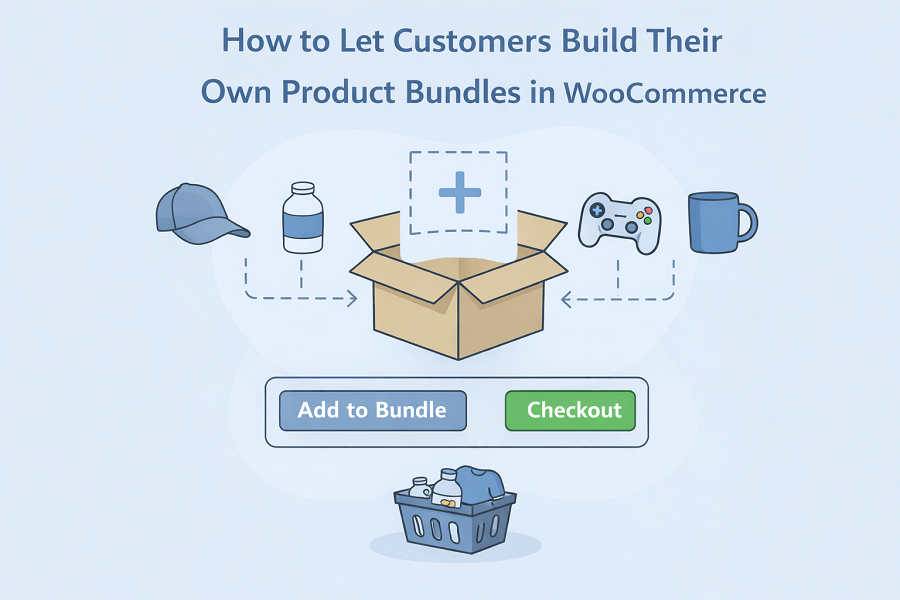
Product bundling is one of those strategies that has been around in retail forever and for good reason. When customers can put together their own combination of products, they feel more in control of what they are buying, and that sense of control almost always leads to a more satisfying purchase.
For WooCommerce store owners, offering that kind of flexibility is not just a nice addition; it is a genuine way to increase average order value while giving customers something they actually want, which is the ability to shop on their own terms.
The default WooCommerce setup does not really give you a clean way to do this. You can group products together, but true customizable bundling, where a customer picks what goes into a box, sets a quantity, adds a gift note, and checks out with their own curated selection, requires a dedicated solution.
That is exactly what the WooCommerce mix and match approach is built around, and this article is going to walk you through everything from setting it up to configuring the features that make it work properly for your store.
What WooCommerce Mix and Match Actually Means for Your Store
Before getting into the setup, it helps to understand what mix and match bundling actually does for a store beyond just looking good on a product page. When you allow your customers to build their own box, it is up to them if it’s a gift hamper, a skincare bundle, a collection of snacks in a box, or a first aid kit. What takes place primarily is known as customer engagement with your products.
When your customers start making deliberate choices, it means that they are fully invested in purchasing your products before they even reach the checkout. From a store owner’s perspective, WooCommerce mix and match products open up a new category of selling that sits somewhere between individual product sales and fixed bundles.
You get the revenue benefits of bundling without forcing customers into combinations they may not want. You can also make pre-filled boxes along with products you would like to recommend, label them with reasonable price tags based on the bundle itself, and also add restrictions to certain customer groups, such as wholesalers or members.
It is just another layer of personalization that you can add to your store’s experience with this very plugin. The plugin handling all of this is the Custom Mix and Match Product Boxes and Bundles for WooCommerce by Extendons, and the setup is straightforward once you know where everything lives.
Installing the Plugin
To install the plugin, you simply need to follow the WordPress standard plugin installation process, which will take you just 5 minutes tops! Here is an example for the WooCommerce mix and match plugin:
- Start off by downloading the mix and match products WooCommerce plugin from your dashboard.
- Go to your WordPress admin panel, then navigate to Plugins > Add New > Upload and select the .zip file that you downloaded.
- Then you have to install and activate the plugin, with options for each visible there.
- Once activated, navigate to WooCommerce > Settings, where you will find the Custom Boxes tab.
That Custom Boxes tab is your global settings area, and it is where you configure the defaults that apply across all your mix and match products before getting into individual product-level settings.
Configuring the Global Settings
Inside Custom Boxes > General Settings, you can set the defaults for how your product boxes look and behave across the store. Here is what you can configure at this level:
- Layout Style: Choose between Detailed, which shows product descriptions, and Compressed, which keeps things more minimal and space efficient.
- View Style: Select either List or Grid view for how products are displayed inside the box.
- Add to Cart Text: Customize the label on the add to cart button to match your store’s tone.
- Heading Label: Set a custom heading for the product boxes section.
- Out of Stock Error Text: Write a custom message that appears when a product in the box is unavailable.
- Box Success Message: Set the message that shows when a box is completely filled.
- Form Width: Adjust the width of the product box form to fit your page layout.
- Background Color and Primary Color: Set colors that complement your store theme.
- Price Label Color: Control the color of pricing text inside the box.
- Image Placeholder: Upload a custom placeholder image for empty box slots so the layout always looks intentional, even before a customer starts filling it.
These global settings save you from having to configure the visual side of things repeatedly for every single product, though you can always override them at the product level when needed.
Creating a Mix and Match Product
Once the global settings are in place, the actual bundle creation happens at the product level. Navigate to WooCommerce > Products > All Products > Add New and inside the Product Data tab, set the product type to Custom Product Boxes. This will add a dedicated Product Boxes tab where all the bundle-specific configuration lives.
General Settings at Product Level
- Enable or Disable: Toggle product boxes on or off for this specific product.
- Pricing Type: Choose from three options depending on how you want to charge for the bundle:
- Fixed Pricing: A set price for the entire box regardless of what goes inside it.
- Per Item Price with Base Price: Charges the individual product prices plus a base box price on top.
- Per Item Price without Base Price: Charges only based on the individual products added, with no base price attached.
- Sort Products by Date: Displays the most recently added products at the top of the selection.
- Enable Gift Message: Check this to allow customers to add a personalized note to their bundle, which is a particularly valuable option for stores that sell gift-oriented products.
- Hide Out of Stock Products: Automatically removes unavailable products from the selection so customers only see what they can actually purchase.
Setting Bundle Item Limits
This section controls how many products can go into a box and how the quantity rules work:
- Box Quantity: Set the total number of items allowed in a single box.
- Enable Per Product Limit: Restrict how many times the same product can be added to a single box.
- Set Per Product Limit for Each Separate Box: Apply the product limit per box rather than across the entire order.
- Allow Partially Filled Boxes: This is an important conversion feature because it lets customers check out without filling the entire box, and you can set the minimum quantity required before checkout is allowed. Removing the pressure of a fully filled box reduces the chance of a customer abandoning the process altogether.
Configuring the Bundle Layout
- Override Global Design: Check this to apply a different layout for this specific product rather than using the global defaults.
- Layout Style: Choose between Compressed, Detailed, and Product Layout depending on how much information you want visible for each item in the box.
- View Style: Select Grid or List depending on what suits the product type better.
- Enable Description: Turn on product descriptions within the box, this only works with the Detailed layout.
Adding Multiple Box Support
- Enable Add New Box: Allows customers to fill one box and then start a second one within the same product page, which is great for customers buying bundles in bulk or putting together multiple gifts at once.
- Enter New Boxes Limit: Set a cap on how many boxes a customer can add in a single session.
- Restrict Add New Box: Prevent customers from starting a new box until the current one meets the minimum quantity requirement.
Selecting Products for the Bundle
The Bundle Items section is where you actually choose what products customers can pick from when building their box. You can select products individually or pull in entire categories, which is a much more efficient approach if you have a large product range and want an entire collection available for bundling without adding each item manually.
For pre-filled boxes you can enable the Pre-Filled Box option and add specific products and variations that appear in the box by default. You can mark each pre-filled item as either optional, meaning customers can remove it, or mandatory, meaning it stays in the box regardless of what else the customer does. This is particularly useful for bundles where certain anchor products should always be included, like a base product that the rest of the bundle builds around.
You can also set Featured Products within the bundle, which pins selected items to the top of the product selection so they are the first thing customers see when building their box. This works well for promoting high-margin or best-selling products within a bundle context without being heavy-handed about it.
Applying Discounts to Bundle Items
With the mix and match products WooCommerce plugin, the bundle discount feature is worth setting up if you are using per-item pricing because it gives you a clean way to incentivize customers to fill their boxes. You can apply either a fixed amount or a percentage discount to specific products or variations within the bundle, and a discount widget appears automatically on the product page showing customers exactly what they are saving. You can customize the widget button text to match the tone of your store as well.
Restricting Product Boxes by User Role
Many stores exist out there that serve different kinds of users with different roles. If your store is one of them, you can simply apply user role restrictions on a product level. You can pick the roles you want to be allowed to make a purchase, and also set a custom message that will appear for users who don’t have access.
If you think about it, this feature is really practical for stores that offer exclusive bundles to wholesale buyers, members or even registered users. You won’t have to worry about exposing certain options to everyone anymore.
Conclusion
If you want to know what can be considered as “effective” to increase the general amount of engagement and average order values you get within your WooCommerce store, the above-mentioned plugin is exactly what you need.
Sure, there are many other aggressive and over-the-top upselling tactics you can use, but such hard and fast rules won’t get you so far with your sales. The approach you take with the WooCommerce mix and match plugin works best because it places your customers in the driver’s seat.
When your customer feels like they are building something that specifically suits their needs, then they are far more likely to proceed with the purchase, making sure that is it completed. And what’s better? They come back for more.
The Custom Mix and Match Product Boxes plugin by Extendons covers every part of that experience from pricing flexibility and layout options to pre-filled bundles, gift notes, and role-based visibility, giving you everything you need to make bundling a proper part of how your store sells.