
The Microsoft Print to PDF feature in Windows is a wonderful feature for users who often want to turn any document, webpage, or image into a PDF quickly. But many users are discovering that it’s missing from their list of printers. If you are one of those users, then this post is for you.
Many Windows 10 and Windows 11 users face this issue due to either driver glitches, any system update error, or maybe an accidental removal. In this guide, we’ll explore why this happens, and how you can fix it step by step.
Also you can consider using any dedicated PDF Editor like Systweak PDF Editor for long-term PDF management.
Why Does Print to PDF Go Missing in Windows?
There are several reasons responsible for “Print to PDF” option gone missing:
- System updates could have removed it or may have failed to install the driver correctly.
- Corrupt or missing system files that are related to the PDF printer driver can be the reason.
- Accidentally uninstalled the Print to PDF feature from Windows Features.
- Other software conflicts can disable or override the function.
But no need to worry when you can bring it back with these few quick fixes that I’m mentioning below.
Methods to Fix the Missing Print to PDF Feature
1. Re-enable Microsoft Print to PDF in Windows Features
- Press Win + R, type optionalfeatures, and hit Enter.
Or type “Turn Windows feature on or off” in the search bar and open it.
- In the Windows Features box, scroll down and find Microsoft Print to PDF.
- Uncheck Microsoft Print to PDF

- Then click on OK and restart your computer.
- Your system is on again, go back to the features box and check the option again and click OK to re-enable it.

- Now wait while it installs and fixes your problem.
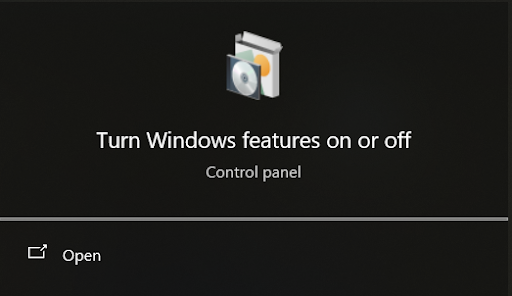
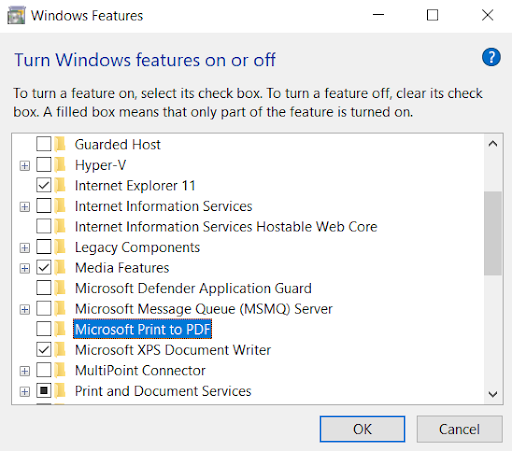
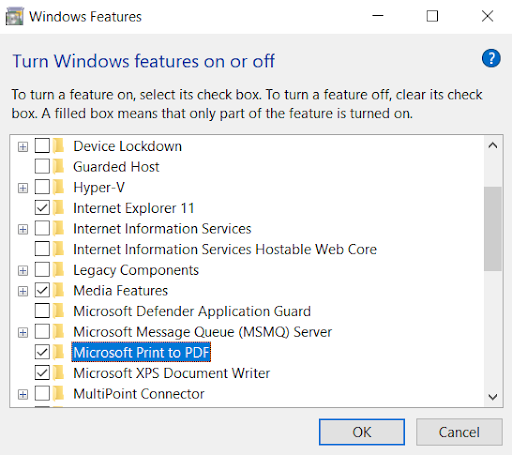
This simple refresh often restores the feature and resolves most issues.
2. Add the Printer Manually
If the feature is missing from your printers list:
- Open Settings > Bluetooth & Devices > Printers & Scanners

- Here click on Add Device

- Let it search and click on Add a new device manually.
- Select “Add a local printer or network printer with manual settings” and click on Next.
- Then in the “Use an existing port” and choose PORTPROMPT: (Local Port) and click Next.
- From the list of manufacturers, select Microsoft, and from the printers list, select Microsoft Print to PDF and click on Next. This will reinstall the driver manually.
- If you don’t see Print as PDF option then click on “Windows Update”, wait for it to process then click on print to PDF and name the Printer.
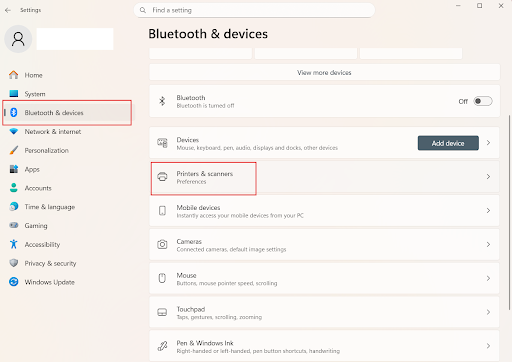
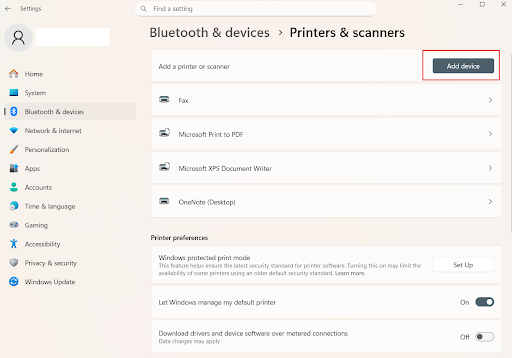
In fact, you can also detect it in the beginning, when you try to add a new device.
3. Reinstall Using Command Prompt (DISM)
Sometimes, system corruption prevents the driver from working. You can repair it with DISM:
- Open Command Prompt as Administrator.
- Then type:
dism /Online /Enable-Feature /FeatureName:”Printing-PrintToPDFServices-Features” /NoRestart - Press Enter.
- Then restart your PC.
This command will reinstall the Print to PDF service.
4. Use PowerShell
Alternatively, PowerShell can help you disable and re-enable the feature:
- Open PowerShell as administrator.
- Run these commands one by one:
Disable-WindowsOptionalFeature -Online -FeatureName Printing-PrintToPDFServices-Features
And then,
Enable-WindowsOptionalFeature -Online -FeatureName Printing-PrintToPDFServices-Features - Now restart your system.
5. Update or Reinstall via Device Manager
- Press Win + X and go to Device Manager.
Or search for Device Manager in the search bar and open it. - Here look for Printers/Print Queues.
- Then expand it and look for Microsoft Print to PDF.
- Right-click on it and select Uninstall device.
- Then restart your PC, when your system will start your Windows will automatically reinstall it, once the OS will detect it missing.
6. Use Systweak PDF Editor (The Smarter Alternative)
Since Microsoft restricts the users to only printing files to PDF, it’s better to use a professional tool that enhances the features and functionalities. And Systweak PDF Editor is the one, with Systweak PDF Editor, you don’t need to rely on Windows’ built-in printer because it provides you with advanced options like editing, converting, and many more.
With Systweak PDF Editor, you can:
- Convert any file to PDF instantly (without “Print to PDF”).
- Edit, merge, split, and secure PDFs effortlessly.
- Perform OCR on scanned documents to extract text.
- Batch converts multiple files into PDF format in one go.
Instead of troubleshooting the built-in tool every time it breaks, Systweak PDF Editor gives you a complete, reliable, and feature-rich solution for all your PDF needs.
Conclusion
The Microsoft Print to PDF feature is very convenient, but if for any reason it vanishes. Fix it by following these methods, check it after performing every way to confirm if it got fixed, and if not move to the next method.
And if you are someone who deals with PDFs on a regular basis then you can consider using Systweak PDF Editor. It’s the smartest alternative, not only to replace the built-in feature but it has many powerful tools so you can manage your PDFs very easily.
FAQs
Q. Why is Microsoft Print to PDF missing on my PC?
If your Microsoft Print to PDF option is missing, then it could be due to Windows updates, corrupt system files, or accidental uninstallation, follow the above methods to bring it back.
Q. Is it safe to reinstall it with Command Prompt or PowerShell?
Yes it is totally safe, Command Prompt or PowerShell are official methods to repair or re-enable the feature.
Q. Can Systweak PDF Editor replace Print to PDF completely?
Absolutely. It allows you to convert, edit, and manage PDFs without relying on the Windows driver.
Q. Does Systweak PDF Editor work offline?
Yes, Systweak PDF Editor is a desktop tool, so all conversions and edits can be done securely on your PC.