
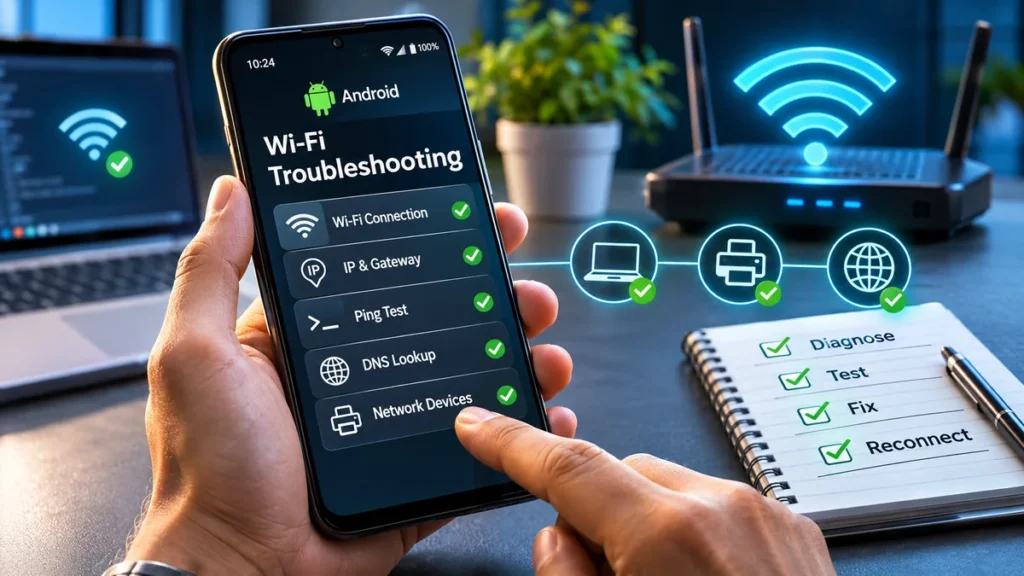
A Wi-Fi icon tells you that an Android phone has joined a wireless network, not that every part of the connection works. Slow pages, failed logins and unreachable printers can have different causes. A useful troubleshooting sequence separates the wireless link, local network, internet connection and application before changing settings.
1. Establish what is failing
Record the symptom: does the phone fail to join, connect without internet access, or struggle with just one app or local device? Note when the problem started and whether it happens everywhere or only in one room.
Compare another device on the same network. If several devices fail, investigate shared equipment or the internet connection. If only the Android phone fails, investigate its settings and any network rules specific to that device. A working laptop does not rule out every router-side problem.
Temporarily disable mobile data so cellular fallback cannot hide a failed Wi-Fi test. Then try the phone on another trusted network. Restore mobile data when testing is complete.
2. Reconnect without disrupting other users
Toggle Wi-Fi off and back on, then repeat the same test. If necessary, restart the phone. Make one change at a time so the result remains useful.
For a personally managed network, forgetting and rejoining it can clear an outdated saved configuration. Have the correct password available first. On managed office networks, ask IT before deleting profiles that may require certificates or administrative setup. Do not accept an unexpected certificate or security warning just to get connected.
If the network restricts access by MAC address, an administrator can compare its allowlist with the address the phone uses for that network. Android’s private or randomized address setting can matter here. Avoid changing security controls simply to bypass an unexplained rejection.
3. Compare wireless conditions
Test close to the access point, then return to the problem location. Use a Wi-Fi analyzer to compare signal readings rather than relying only on the Wi-Fi icon. A weaker reading and worse performance in one location suggest a coverage problem, though signal strength alone cannot identify the cause.
Nearby networks and overlapping channels can help explain congestion, but an analyzer’s network list is not a complete measurement of interference. If separate bands are available, compare them from the same location. Results depend on distance, obstacles, equipment and other traffic, not just the band label.
On networks you administer, record the findings before adjusting channels or access point placement. Coordinate changes on shared networks instead of interrupting other users.
4. Separate local access from internet access
An Android toolkit such as Network Utilities Ultimate brings WiFi Analyzer, Ping, DNS Lookup, IP Scanner and Port Scanner tools together. Choose the test that answers the next question rather than running every tool at once.
Check the phone’s network details for an IP address and gateway. These help establish whether its configuration fits the network; their presence alone does not prove DHCP succeeded because addresses can also be set manually. An IPv4 address in the 169.254 range usually indicates link-local addressing rather than the expected router-assigned configuration. On a typical home or office network, investigate address assignment before changing DNS.
Ping the gateway, if it permits ping, then a known public IP address that accepts these tests. A gateway reply supports local reachability. A public reply supports connectivity beyond the local network. A missing reply is inconclusive because filtering can block ping even when other traffic works. Compare the result with browser behavior and another device.
5. Check DNS, login portals and individual apps
If external IP tests succeed but websites fail, use DNS Lookup to test more than one domain. Repeated lookup failures suggest investigating the configured resolver or DNS settings. A successful lookup does not prove the website itself is available.
Guest Wi-Fi may require a captive-portal login. Look for Android’s sign-in notification or try opening a non-sensitive HTTP page to trigger the portal. Confirm that the network and portal are legitimate before submitting information; never bypass certificate warnings.
If browsing works but one app fails, shift attention to that app, its service and any VPN or filtering policy. Do not replace working network settings to solve an isolated application problem. Traceroute can offer additional context, but unanswered hops alone do not locate a fault.
6. Investigate local devices and document the result
For an unreachable printer or server, use discovery tools only on networks you own or have explicit permission to test. An IP scan may help find a device at its expected address, but a missing result does not prove it is offline.
For a known device, check only the relevant service port when authorized. A response can support service reachability; a failed check may reflect filtering or an unavailable service, not necessarily a broken Wi-Fi link.
Save the time, location, affected devices, IP details and test results, taking care not to share credentials or sensitive network information. Give that record to the administrator or provider if escalation is needed. Avoid factory resets and unplanned router restarts: targeted evidence is more useful than a series of disruptive guesses.