
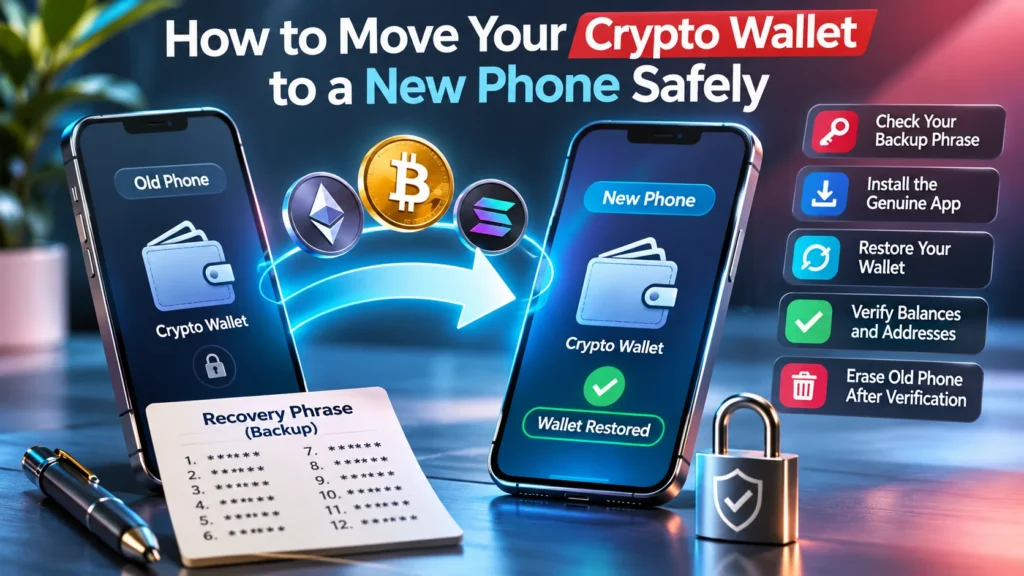
Moving a crypto wallet to a new phone usually means restoring access to the same blockchain accounts through the wallet’s recovery process.
The important work happens before the old phone is erased. A working backup, a verified app, and a check of the restored accounts help prevent a routine upgrade from becoming an access problem. This guide covers a planned phone replacement for a self-custody software wallet that uses a backup phrase.
Understand What Actually Moves
A wallet app manages the keys that authorize transactions, while the blockchain records the assets associated with its addresses.
Restoring the same accounts on another phone does not itself send a payment. Sending funds to a newly created wallet is a separate operation and can involve network fees.
Check the wallet type first. An exchange account may use a login and identity-based recovery. A hardware wallet has its own device workflow.
Neither should be handled by following a software wallet’s backup-phrase instructions.
Check the Backup Before Starting
The backup must be available independently of the phone being replaced.
Open the existing wallet and follow its official instructions for viewing and recording the recovery information. Check the spelling and word order privately. Keep the backup somewhere protected from theft, accidental disposal, and physical damage. If you added accounts using separate private keys, check their backup requirements too; the main recovery phrase may not restore them.
A phone unlock code and a wallet password serve different purposes from a backup phrase. Knowing either does not necessarily provide a way to restore the wallet after the device is erased.
Prepare the essentials before continuing:
- A readable backup stored offline.
- Access to the original wallet app.
- A new phone with current software.
- The wallet provider’s official installation instructions.
- Public receiving addresses for later comparison.
Never share the backup with anyone, including a repair shop, trade-in service, setup assistant, or someone claiming to be wallet support.
Install the Genuine Wallet App
Start from the provider’s official website and follow its links to the relevant app store.
Avoid installing from an unsolicited message or an advertisement offering wallet recovery. Check the developer identity and app listing against the provider’s instructions. A familiar icon alone is insufficient evidence.
Set a strong screen lock on the new phone before restoring the wallet. Complete operating-system updates and perform the setup privately, away from cameras or screen-sharing sessions.
Treat ordinary phone migration as a separate task. Confirm the wallet’s recovery method explicitly before assuming that copying apps and photos also preserves access to funds.
Restore the Existing Accounts
Choose the wallet’s restore or import option to access existing accounts on the new phone.
Creating a new wallet produces different recovery information and addresses. An empty new wallet therefore does not establish that the previous funds have disappeared.
Follow the provider’s documented sequence:
- Open the verified app on the new phone.
- Select the option for restoring an existing wallet.
- Enter the backup privately in the genuine app’s recovery flow.
- Set the password requested for the new installation.
- Allow account information to load before checking balances.
Labels vary between apps and versions. Consult the current official instructions if the screens differ; do not follow a stranger’s request to enter the phrase into a website.
Verify the Restored Wallet
Compare familiar public addresses and transaction history before erasing the old phone.
Compare the same account on the same network. A fixed receiving address should match; wallets that generate fresh receiving addresses may display a different one, so also check known addresses and transaction history. Review every important asset, including tokens hidden from the default view.
A zero balance is a reason to investigate. Check that the correct wallet was restored, the relevant asset is visible, and the app has finished loading. A public blockchain explorer can help confirm activity without receiving any secret recovery information.
Record unresolved differences and use official support. Do not repeatedly delete app data while the original phone holds the only working installation.
Know the Common Failure Points
Most migration problems are easier to diagnose when account access and device setup are considered separately.
Use this checklist to narrow down the issue:
| Problem | What to Check |
|---|---|
| Empty wallet after setup | Whether a new wallet was created accidentally |
| Unexpected account addresses | Backup accuracy and the selected account |
| Only some assets appear | Token visibility and network support |
| A different wallet app shows different results | Documented recovery compatibility |
| An assistant asks for secret words | Stop the interaction and use official support |
Changing wallet providers adds compatibility questions. Before importing a phrase into a different app, verify support for the required assets and account derivation. A phrase accepted by an app does not prove that every original account is supported.
Move an Atomic Wallet to a New Phone
For Atomic Wallet users, restoring on a new phone starts with the same 12-word backup phrase used by the existing wallet.
Install the app through its official website, choose the restore option, and enter the phrase privately. Set and confirm a password for the new installation, then let the balances load.
Restoring access this way does not send your crypto to a new address. Verify the restored accounts before erasing the old phone, and keep the backup offline for future recovery. Never share the phrase or enter it on a website.
Handle a Lost Phone Differently
A missing or potentially compromised phone requires a different response from a planned upgrade.
Restoring a wallet elsewhere does not revoke the old device’s keys. If the phone or its keys may be compromised, use a trusted device to create a wallet with a new backup phrase and move your funds there, following the provider’s guidance.
Changing a local app password does not change the original backup phrase. The urgency depends on the exposure, and a successful restore alone does not resolve that risk.
Retire the Old Phone Last
Erase the old phone only after the replacement provides the expected wallet access and the backup remains available offline.
Then follow the phone manufacturer’s resale or trade-in procedure. Apple’s guidance includes transferring needed information, removing personal data, and erasing the device. Android owners should follow the instructions for their manufacturer and model.
Keep the recovery backup after the upgrade. The replacement phone can also fail, and the next recovery should not depend on keeping an obsolete device running.
FAQ
Does restoring a wallet transfer cryptocurrency?
Restoring the same accounts provides access from another device. Sending funds to a newly created wallet is a separate blockchain transaction.
Can a wallet password replace the backup?
Not necessarily. For a wallet that requires a backup phrase, the local password alone is insufficient to restore access after losing the installation.
Should I photograph my recovery phrase?
Avoid screenshots and photos that may sync to online storage. Keep a readable offline backup protected from unauthorized access.
Will any wallet accept my backup?
Recovery compatibility varies. Check supported assets and account derivation before using another app; accepting the phrase does not establish complete compatibility.
Does restoration disable the old phone?
No. Restoring the same keys elsewhere does not revoke them on the original device. Treat a lost or compromised phone separately.