
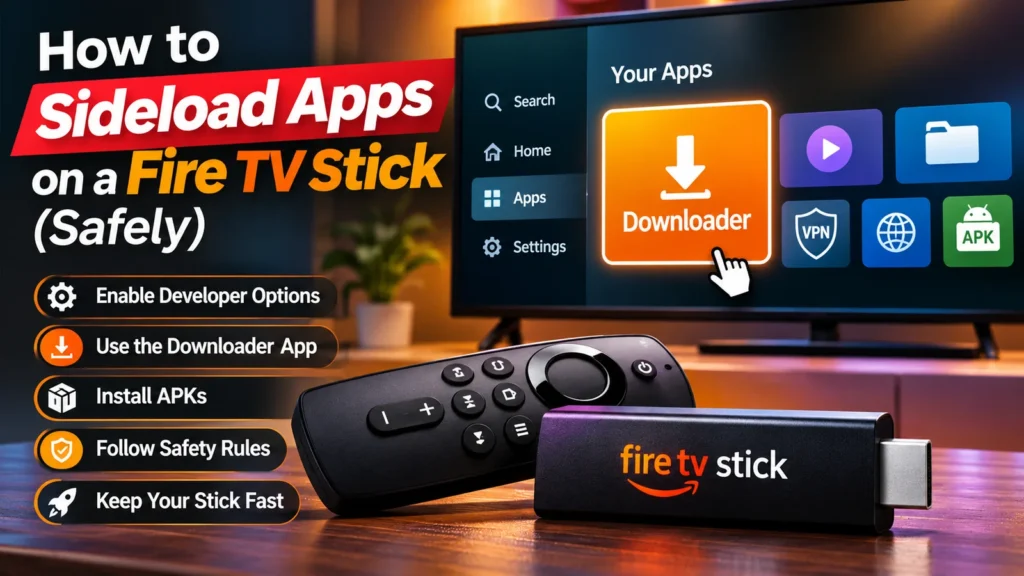
Amazon’s Appstore covers the big names, but plenty of useful apps never make it there: media players, file managers, VPN clients, browser alternatives and niche tools. Installing them yourself is called sideloading. It takes about ten minutes, and you don’t need a computer. Here’s how to do it on a Fire TV Stick in 2026, plus the habits that keep it from slowing your stick down or putting your account at risk.
First, check that your stick can sideload at all
Most Fire TV devices run Fire OS, which is built on Android, so they can install Android apps (APK files). The exception is the newer Fire TV Stick 4K Select, which runs Amazon’s Vega OS. It can’t install Android APKs, so sideloading isn’t possible on it.
To check which one you have, go to Settings → My Fire TV → About. If you see a Fire OS version, you’re good to go.
Step 1: Turn on Developer Options
On recent Fire OS versions the Developer Options menu is hidden until you unlock it:
- Open Settings → My Fire TV → About.
- Highlight your device name (for example “Fire TV Stick 4K”) and press the select button on the remote seven times.
- A message appears saying you’re now a developer. Press back once and Developer Options shows up in the My Fire TV menu.
Step 2: Install the Downloader app
Downloader is a free app in the Amazon Appstore. It combines a simple browser with a file downloader, and it’s the easiest way to get an APK onto a stick. Search for “Downloader” from the home screen (the icon is orange) and install it like any other app.
Step 3: Allow Downloader to install apps
- Go to Settings → My Fire TV → Developer Options.
- Open Install unknown apps.
- Find Downloader and switch it to ON.
This permission only applies to Downloader, not to every app on the device. That’s the safer way to do it.
Step 4: Download and install the app
Open Downloader and type the address of the APK, or the short code the developer publishes. When the file finishes downloading, an install screen appears. Select Install, then Done. Don’t choose Open yet: Downloader will offer to delete the installation file, and you should accept, because APK files take up storage you’ll want later.
Media players are the most common reason people sideload. If that’s what you’re setting up, this guide to installing IPTV Smarters Pro on a Firestick covers the Downloader steps for that specific app, including the sign-in screen and the errors people usually hit on the first launch.
Where to get APK files safely
Sideloading is only as safe as the file you install. A few rules cover almost every risk:
- Download from the developer’s own website. Mirror sites and “modded” versions are where malware usually hides.
- Be suspicious of apps that ask for too much. A video player has no reason to want your contacts or microphone.
- Avoid “free premium” versions of paid apps. Cracked apps are a common way to spread adware, and they stop working after updates anyway.
- Turn “Install unknown apps” back off for Downloader when you’re done. It takes five seconds and closes the door until you need it again.
Keep your stick fast after sideloading
Most Fire TV Sticks have around 8 GB of storage, and less than that is actually free. Sideloaded apps don’t update themselves through the Appstore, so they tend to pile up. Once a month:
- Go to Settings → Applications → Manage Installed Applications and uninstall anything you don’t use.
- For the apps you keep, open each one and choose Clear cache. Don’t choose Clear data, which also wipes your logins and settings.
- Check the developer’s site for updates to the apps you sideloaded. Old versions are the main cause of crashes and playback errors.
- Restart the stick from Settings → My Fire TV → Restart. Unplugging it works too, and both clear out memory leaks from long sessions.
Common problems and quick fixes
“App not installed.” This usually means there isn’t enough free space, or the APK was built for a different processor type. Free up storage first, then download the version the developer lists for Fire TV or Android TV.
The app installs but won’t open from the home screen. Sideloaded apps sometimes don’t appear in the main row. Hold the Home button, choose Apps, and you’ll find it at the end of the list. From there you can move it to the front.
The remote doesn’t work inside the app. Some Android apps are designed for touchscreens. Look for a TV or “leanback” version from the same developer, or install a mouse-toggle app so you can control it with a cursor.
Downloads keep failing. Check the address for typos and make sure the stick is on 5 GHz Wi-Fi if your router supports it. If it still fails, restart the router. A weak connection is behind most failed downloads.
Is sideloading worth it?
For most people, yes, as long as you treat it the way you’d treat installing software on a laptop: get apps from the people who make them, keep them updated, and remove what you don’t use. Do that and a Fire TV Stick becomes far more flexible than its built-in store suggests, without giving up the speed and simplicity that made it worth buying.