
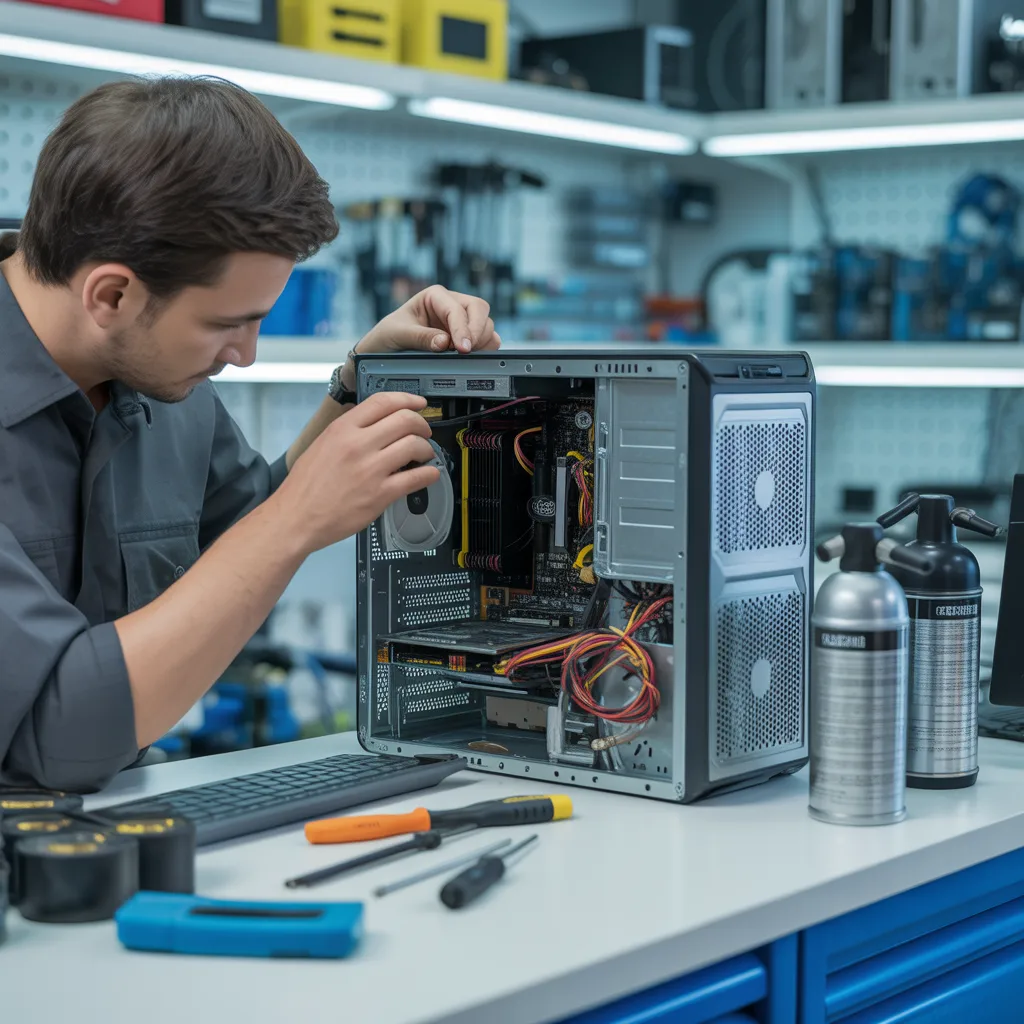
Many people only think about servicing their PC when something goes wrong. The screen freezes, the fan becomes loud, programs crash, or the system shuts down unexpectedly. By that time, the issue has usually been building for months. Regular PC servicing is preventive care. It protects performance, extends hardware life, and reduces the risk of expensive repairs. A computer works daily under heat, electrical load, and software stress. Dust builds up. Files accumulate. Updates are missed. Over time, these small issues combine and slow the system down. The right servicing schedule depends on usage, environment, and workload. There is no single rule for everyone. However, understanding when and why to service your PC helps you avoid downtime, data loss, and sudden failures. Preventive maintenance is always more affordable and less stressful than emergency repair.
For Light Home Users: Once a Year is Often Enough
If your PC is used mainly for web browsing, streaming, emails, and light document work, annual servicing is typically sufficient. Light use generates less heat and places minimal strain on hardware components. However, even light-use systems collect dust internally and accumulate unnecessary files.
A yearly service should include:
- Internal dust cleaning
- Virus and malware scan
- Software and driver updates
- Disk cleanup and performance optimization
- Basic hardware health checks
Even if the system seems fine, internal dust can restrict airflow and slowly increase temperatures. Annual servicing prevents hidden buildup from turning into overheating problems later.
For Office or Business Use: Every 6–12 Months
Office computers are used daily for long hours. They handle multiple applications, large files, and constant internet connectivity. This increases wear on hardware and software.
Businesses that rely on computer repair services often schedule maintenance every six to twelve months to avoid downtime. Productivity depends on system reliability. When one machine fails, workflow is disrupted.
Regular servicing for office PCs helps:
- Maintain stable performance
- Reduce employee downtime
- Protect sensitive company data
- Prevent unexpected hardware failure
Waiting until a business PC fails can cost more in lost productivity than the repair itself.
For Gaming or High-Performance PCs: Every 6 Months is Recommended
Gaming PCs and high-performance systems run under heavy load. Graphics cards and processors generate significant heat during gaming, editing, or design tasks. Thermal paste can degrade. Fans collect dust faster. Performance drops when cooling becomes inefficient.
Servicing every six months helps maintain:
- Stable frame rates
- Proper cooling efficiency
- Component lifespan
- System reliability under load
High-performance hardware is expensive. Preventive maintenance protects that investment. Overheating is one of the main causes of early hardware failure in gaming systems.
For Dusty, Humid, or Poorly Ventilated Environments
Environment plays a major role in servicing frequency. If your PC operates in a dusty workshop, near open windows, or in humid conditions, internal contamination increases faster. Dust blocks airflow. Humidity can affect internal circuits.
In such cases, servicing may be needed every 4–6 months. Environmental factors accelerate wear. Even light-use systems can overheat quickly in poor conditions.
Common environmental risks include:
- Construction dust
- Pet hair accumulation
- Smoking indoors
- High humidity levels
- Poor ventilation
If your environment includes any of these, increase your service frequency.
Warning Signs That Your PC Needs Immediate Attention
Even with a schedule, you should pay attention to warning signs. Servicing should not wait if clear symptoms appear.
Look for:
- Loud or constant fan noise
- Overheating or hot surfaces
- Frequent crashes or freezes
- Slow startup times
- Random restarts
Many devices brought to an electronics repair shop show these symptoms for months before failure. Early servicing prevents major damage. Ignoring these signs increases the chance of motherboard or storage failure.
What Happens During a Professional PC Service?
Professional servicing is more than just cleaning. It involves structured inspection and diagnostics.
A complete service may include:
- Internal dust removal using proper tools
- Fan and cooling system inspection
- Thermal paste evaluation
- Malware and security checks
- System update verification
- Disk health testing
- Memory diagnostics
- Performance optimization
Professional electronics repair services use diagnostic tools to identify hardware stress before failure occurs. This proactive approach saves money long-term.
How Regular Servicing Extends Hardware Lifespan
Heat is the biggest enemy of computer hardware. Excessive heat shortens the life of processors, graphics cards, power supplies, and storage devices. Dust buildup increases heat by blocking airflow.
Regular servicing:
- Maintains safe operating temperatures
- Reduces internal stress on components
- Improves airflow efficiency
- Prevents sudden shutdowns
A well-maintained PC can last several years longer than a neglected one. Maintenance slows natural wear and protects critical components.
Software Maintenance is Just as Important as Hardware Cleaning
Many users focus only on physical cleaning. However, software health is equally important. Outdated drivers, corrupted files, and malware infections create instability.
Regular software servicing ensures:
- Operating system stability
- Proper driver compatibility
- Reduced background process overload
- Faster startup and shutdown times
Neglecting software updates can cause crashes and compatibility issues, even if hardware is clean.
DIY Maintenance vs Professional Servicing
Basic maintenance can be done at home, such as deleting temporary files or running antivirus scans. However, internal cleaning and diagnostics require caution. Static electricity, improper handling, or incorrect tools can damage components.
Professional servicing ensures:
- Safe disassembly and cleaning
- Accurate hardware diagnostics
- Correct reassembly
- Reduced risk of accidental damage
For business systems, gaming rigs, or high-value devices, professional servicing is usually the safer option.
Creating a Maintenance Schedule That Fits Your Usage
The best servicing schedule depends on how you use your PC. Consider these questions:
- How many hours per day is it used?
- Does it run heavy software?
- Is the environment dusty or humid?
- Has performance changed recently?
Based on your answers, choose either annual or semi-annual servicing. Setting calendar reminders helps maintain consistency.
The Cost of Ignoring Routine Service
Skipping maintenance may seem harmless at first. But long-term neglect leads to:
- Overheating damage
- Slower performance
- Increased electricity consumption
- Higher repair costs
- Possible data loss
Emergency repairs are always more expensive than preventive service. Preventive care protects both hardware and data.
Final Thoughts
So how often should you get your PC serviced? For light users, once a year is typically enough. For business and gaming users, every six months is safer. In harsh environments, servicing may be needed more frequently. The key is consistency. Regular maintenance keeps temperatures stable, software clean, and hardware protected. Waiting until failure increases risk and cost. A simple service schedule ensures your PC stays reliable, efficient, and ready for daily use. Preventive care is not an extra expense. It is a smart investment in your device’s long-term health.