
Merging JPG images is an easy way to combine multiple JPG files into a single, high-quality image. Whether you want to merge scanned documents, product photos, screenshots, or personal pictures, creating one JPG file makes sharing, printing, and organizing your images much easier.
Many people think merging JPG images reduces image quality, but that’s not always true. Quality loss usually happens because of repeated JPG compression, resizing, or using the wrong image editing tool. With the right method, you can merge JPG images without losing quality and keep the original resolution intact.
In this guide, you’ll learn the best ways to merge JPG images, including image editing software, built-in desktop apps, and free online JPG merger tools, so you can choose the option that best fits your needs.
What Does It Mean to Merge JPG Images?
Merging JPG images means combining two or more JPG or JPEG files into a single image. Instead of managing multiple files, you get one organized JPG that’s easier to share, upload, print, and store.
You can arrange images vertically, horizontally, or side by side based on your needs. People often merge JPG images to combine scanned documents, screenshots, product photos, photo collages, and before-and-after comparisons. Using the right method helps you preserve the original image quality while creating a single high-quality JPG file.
How to Merge JPG Images Without Losing Quality
There are several ways to merge JPG images without reducing their quality. The best method depends on your needs, device, and the level of control you want over the final image. You can use professional image editing software, built-in apps on your computer, or an online JPG merger tool. Below, we’ll explore each method to help you combine multiple JPG images while preserving their original resolution and clarity.
Method 1: Use Image Editing Software
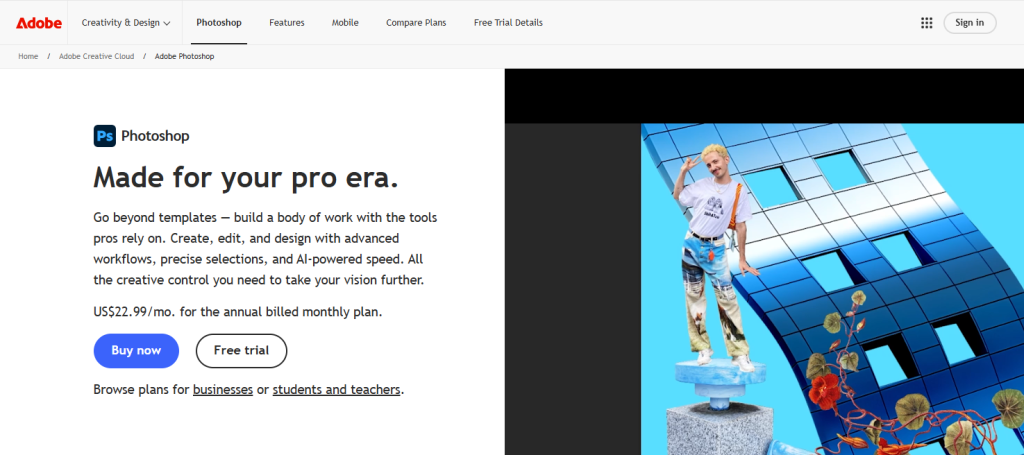
Image editing software is a great option if you want complete control over the layout, spacing, and quality of your merged image. Popular tools like Adobe Photoshop, GIMP, Paint.NET, and Affinity Photo let you combine multiple JPG images while preserving their original resolution. Here we’ll use Adobe Photoshop as an example to show you the basic steps for merging JPG images without losing quality.
Follow these steps to merge JPG images in Adobe Photoshop while preserving image quality:
- Open Adobe Photoshop and go to File > New to create a new canvas. Set the canvas size large enough to fit all the JPG images you want to combine.
- Select File > Place Embedded (or Place Linked) and import each JPG image into the document. Each image will be added as a separate layer.
- Use the Move Tool (V) to position the images. Resize them only if necessary, and avoid enlarging low-resolution images to prevent quality loss.
- Arrange the images vertically, horizontally, or in any layout that fits your needs.
- After checking the layout, go to Layer > Flatten Image to combine all visible layers into a single image.
- Select File > Save a Copy (or File > Save As, depending on your Photoshop version), choose JPEG as the file format, and click Save.
- In the JPEG Options dialog, set Quality to Maximum (12) and keep the appropriate format options, then click OK to save your merged JPG image with minimal compression.
Method 2: Use Microsoft Paint (Windows)
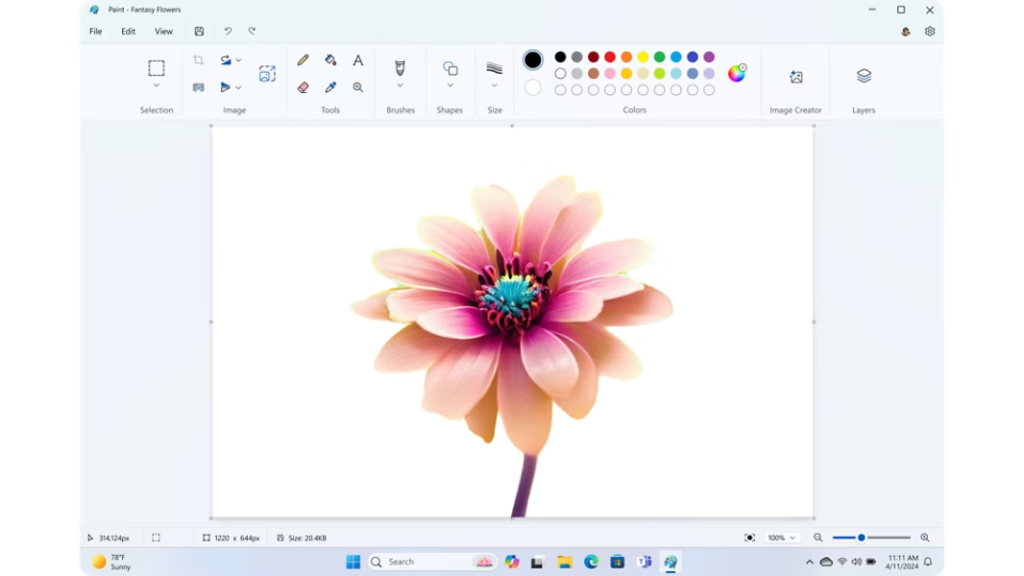
If you’re using a Windows PC, you can merge JPG images with Microsoft Paint without installing any extra software. Follow these steps:
- Open Microsoft Paint and create a new blank canvas.
- Click Paste > Paste From and select your first JPG image.
- Repeat the process to add the remaining JPG images.
- Drag and arrange the images in the desired order on the canvas.
- Adjust the canvas size if needed so all images fit properly.
- Go to File > Save As > JPEG Picture and save the merged image to your computer.
Method 3: Use an Online Merge JPG Tool
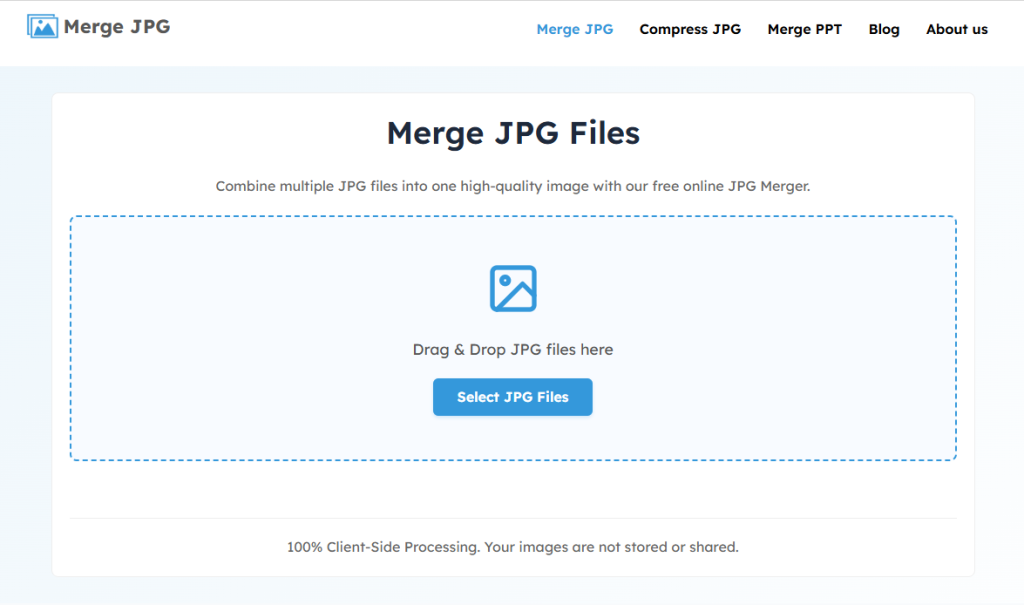
Using an online JPG merger is the quickest and easiest way to combine multiple JPG images into a single file. There’s no need to install software or follow complex steps. It works directly in your web browser while preserving its quality. Follow the steps below to merge JPG files online:
- Open the Merge JPG tool.
- Click Select JPG Files or drag and drop multiple JPG images into the tool.
- Choose Horizontal (side by side) or Vertical (top to bottom) as the layout for your merged image.
- Click the “Merge JPG” button to combine your images instantly.
- Preview the merged image, then download the final high-quality JPG file to your device.
Which Method Should We Use?
The best method depends on your needs. If you need advanced editing features and complete control over the layout, Adobe Photoshop or other image editing software is a great choice. If you only need to combine a few images on a Windows computer, Microsoft Paint offers a simple solution without installing extra software.
Using an online Merge JPG tool is the easiest, fastest, and most reliable way to merge JPG images. It works directly in your browser, so there’s no need to install software or follow complex steps. Simply upload your JPG files, choose a layout, and merge them in seconds. It works on both desktop and mobile devices while preserving the original image quality, making it the best choice for combining JPG images online.
Common Uses for Merging JPG Images
Merging JPG images is useful in many personal, academic, and professional situations. Here are some of the most common use cases:
- Combine Scanned Documents: Merge multiple scanned pages into a single JPG for easier sharing, printing, and digital record keeping.
- Merge ID Cards and Documents: Combine the front and back of an ID card, passport, driver’s license, or other documents into one JPG for online form submissions and verification.
- Join Screenshots: Combine multiple screenshots into one image for tutorials, bug reports, conversations, or step-by-step guides.
- Create Before-and-After Comparisons: Place two images side by side to compare edits, renovations, fitness progress, or product improvements.
- Merge Product Photos: Combine multiple product images into one file to showcase different angles, colors, or features for e-commerce listings.
- Create Photo Collages: Combine multiple photos into a single JPG to create collages for social media, special events, travel memories, birthdays, or family albums.
- Submit School or Office Work as a Single JPG: Combine assignments, handwritten notes, certificates, reports, or other documents into one JPG file for quick and hassle-free submission through online portals or email.
- Share Multiple Images as One File: Combine several JPG images into a single file to make sharing via email, messaging apps, or online platforms faster, easier, and more organized.
Conclusion
Merging JPG images is a simple and effective way to combine multiple photos or documents into a single, organized file. Whether you use image editing software, Microsoft Paint, or an online JPG merger, the key to preserving image quality is using the right method and avoiding unnecessary compression or resizing.
For most users, an online JPG merger offers the fastest and easiest solution. It lets you merge multiple JPG images in just a few clicks without installing software, while maintaining the original image quality. No matter which method you choose, you can create a high-quality merged JPG that’s easy to share, upload, print, and store.