
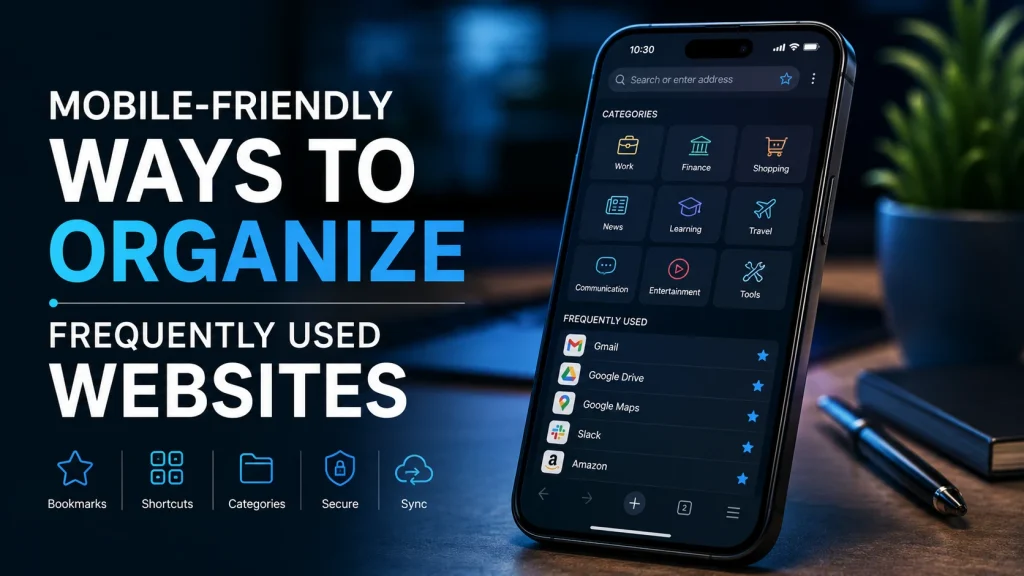
Smartphones have become the primary way many people access the internet. Users check email, read news, communicate with friends, shop online, manage work tasks, and search for information from a single device. Although mobile browsing is convenient, frequently used websites can become difficult to manage when they are spread across browser tabs, messages, search histories, and different applications.
A practical organization system helps users reach important websites without repeating the same searches every day. The best mobile setup should be simple, easy to maintain, and accessible from more than one device. It should also allow users to distinguish between general information pages, work tools, shopping services, entertainment platforms, and sensitive account-based websites.
Identify the Websites You Use Most Often
The first step is to review normal browsing habits. Many users save dozens of pages without considering whether they will visit them again. This creates a large bookmark collection that becomes difficult to navigate.
Begin by identifying websites used daily or several times each week. These may include email, maps, online banking, workplace platforms, news services, shopping pages, educational resources, and entertainment websites.
Less frequently used destinations can remain in a secondary folder. Keeping the main collection limited to genuinely useful websites makes mobile navigation faster and reduces unnecessary scrolling.
Create Clear Bookmark Categories
Mobile bookmarks are more useful when they are divided into recognizable categories. A single folder containing every saved page quickly becomes crowded, especially when websites use vague or similar titles.
Categories may include work, finance, shopping, learning, news, travel, communication, and entertainment. Users who manage several projects can also create separate folders for each project.
Folder names should remain short because mobile screens have limited space. Clear labels make it easier to identify the correct section without opening several folders.
Rename Bookmarks for Faster Recognition
Websites often create bookmark titles automatically. These titles may include promotional phrases, long page descriptions, or information that is not useful when viewed inside a small mobile menu.
Renaming bookmarks can make the collection easier to scan. For example, a long title such as “Official Customer Account and Service Management Portal” may simply be renamed “Account Portal.”
Consistent naming is especially useful when several websites provide similar services. A short note identifying the company, purpose, or region can prevent users from opening the wrong destination.
Use a Mobile-Friendly Navigation Page
Browser bookmarks are convenient, but they may not always sync properly across devices or browser applications. Some users also prefer a visual page that groups frequently visited destinations into clear categories.
Korean-speaking users who regularly move between information services, communities, shopping pages, entertainment platforms, and online tools may use an organized 주소사이트 as a general starting point. A categorized navigation page can reduce repeated searches and make frequently used websites easier to reach from a smartphone.
A useful navigation page should use clear headings, short descriptions, and large touch-friendly links. It should avoid crowded layouts that force users to zoom in or select links positioned too closely together.
Add Important Websites to the Home Screen
Frequently used websites can often be added directly to a smartphone home screen. These shortcuts behave similarly to application icons and allow users to open a page without first launching the browser.
Home-screen shortcuts are useful for websites that do not provide a dedicated application or for users who prefer the mobile web version. Examples may include workplace dashboards, school portals, online scheduling systems, and frequently checked information pages.
However, adding too many shortcuts can create the same problem as an overcrowded bookmark folder. Only the most important destinations should remain on the main home screen, while less common resources can be placed inside folders.
Separate Sensitive Websites From General Browsing
Financial, healthcare, workplace, and government websites may contain private information. These services should be managed more carefully than general news or entertainment pages.
Users may create a separate bookmark folder or browser profile for sensitive services. This can reduce confusion and make it easier to review which websites require stronger account protection.
Passwords should never be written inside bookmark names or notes. A trusted password manager is a more appropriate place for login credentials. Multi-factor authentication should also be enabled when the service supports it.
Use Browser Synchronization Carefully
Browser synchronization can make bookmarks available across smartphones, tablets, and computers. This is helpful for users who regularly change devices or work from several locations.
Before enabling synchronization, users should protect the browser account with a strong password and additional verification. Anyone who gains access to the synchronized account may be able to view saved websites, browsing data, and other personal information.
Shared or public devices should not remain connected to a personal synchronization account. Users should sign out completely and remove local browsing data when access is no longer required.
Review Saved Links Regularly
Website addresses and services change over time. A saved page may move to a new domain, stop receiving updates, or disappear completely. An old address may even be registered by a different owner after it expires.
Reviewing bookmarks every few months helps keep the collection accurate. Broken links, duplicate entries, and services that are no longer used should be removed.
When an important service changes its official address, users should confirm the new destination through a trusted source before updating the bookmark. This is particularly important for financial and account-based services.
Keep Work and Personal Resources Separate
Mixing workplace tools with personal shopping, news, and entertainment pages can make mobile browsing less efficient. Separate folders or browser profiles provide a clearer distinction between professional and personal activities.
A work folder may contain project-management tools, company email, cloud documents, team communication services, and technical references. A personal folder can contain travel information, shopping pages, hobbies, and entertainment resources.
This separation can also reduce accidental use of the wrong account. Users who manage multiple email addresses or online identities are less likely to sign in with personal credentials on a workplace service.
Make the System Easy to Maintain
The most effective organization system is not necessarily the most detailed one. A complicated structure with too many folders and labels may require more time to manage than it saves.
Users should choose a small number of clear categories, rename important bookmarks, and remove destinations that no longer provide value. Frequently used websites can be placed near the top, while temporary research pages can remain in a separate folder and be deleted when the project ends.
By combining mobile bookmarks, home-screen shortcuts, organized navigation pages, secure account practices, and regular reviews, users can create a faster and more dependable mobile browsing experience. Useful websites remain accessible without turning the smartphone into another source of digital clutter.