
If you deal with PDFs on daily bases, you must sometimes feel that you need a good PDF management tool with which you can merge multiple PDFs, split big files, or rearrange pages. And not having one sometimes causes a headache. But the good news is we have a PDF management tool that can manage this all and these tasks don’t have to be complicated anymore. Systweak PDF Editor is the one I’m talking about. This tool can complete all these tasks very easily and quickly.
So let’s learn how to merge, split, and reorder PDF pages quickly with Systweak PDF Editor, so you can organize your documents just the way you want.
When Do We Need to Manage PDF Pages?
Before we dive in, let’s know why you even need to do this?
Merge PDFs
Combine multiple PDFs, like separate chapters, reports, or invoices, into one single file for easy sharing or printing.Split PDFs
Break a large PDF into smaller chunks to send only what’s needed or manage big files better.Reorder Pages
Sometimes PDFs come in the wrong order, rearranging pages can make your document clear and professional.
How to Merge PDF Files Using Systweak PDF Editor
Open Systweak PDF Editor in your system.
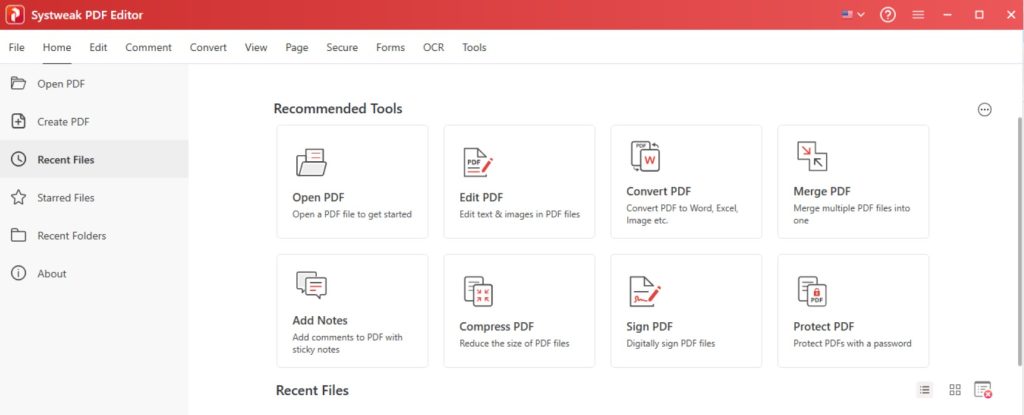
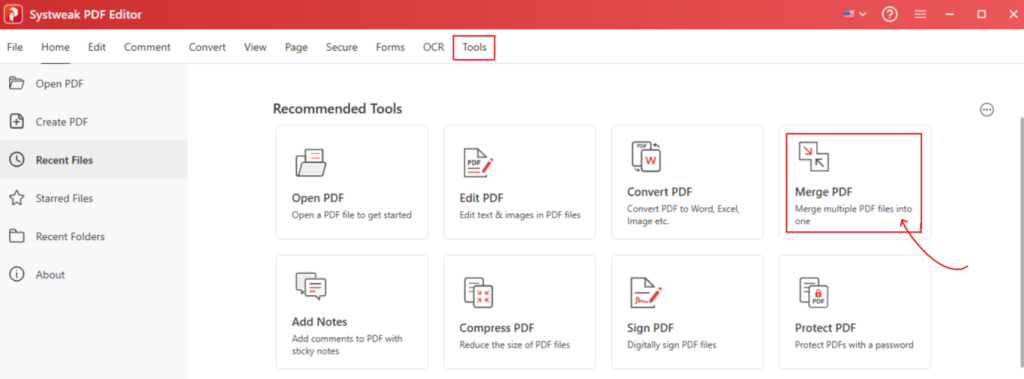
Then go to the “Tool” tab from the top menu, or directly click on “Merge PDF”
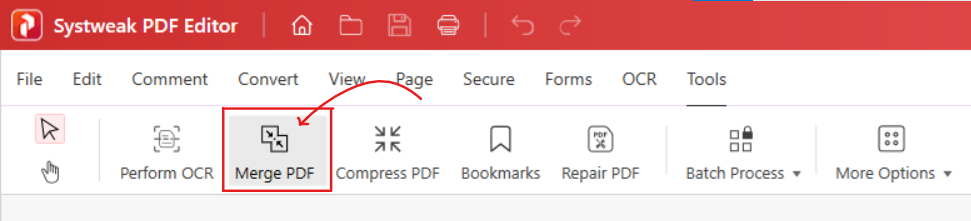
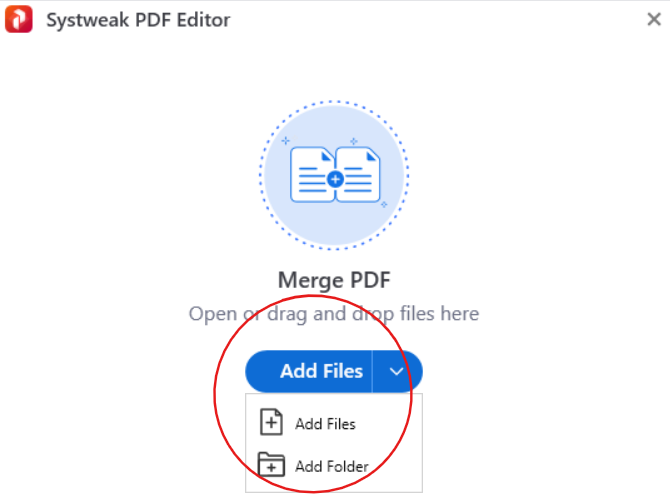
Now click on “Add Files” and add the files or folders to combine them together.
In case you want to add more files you can add them from the preview section as well.
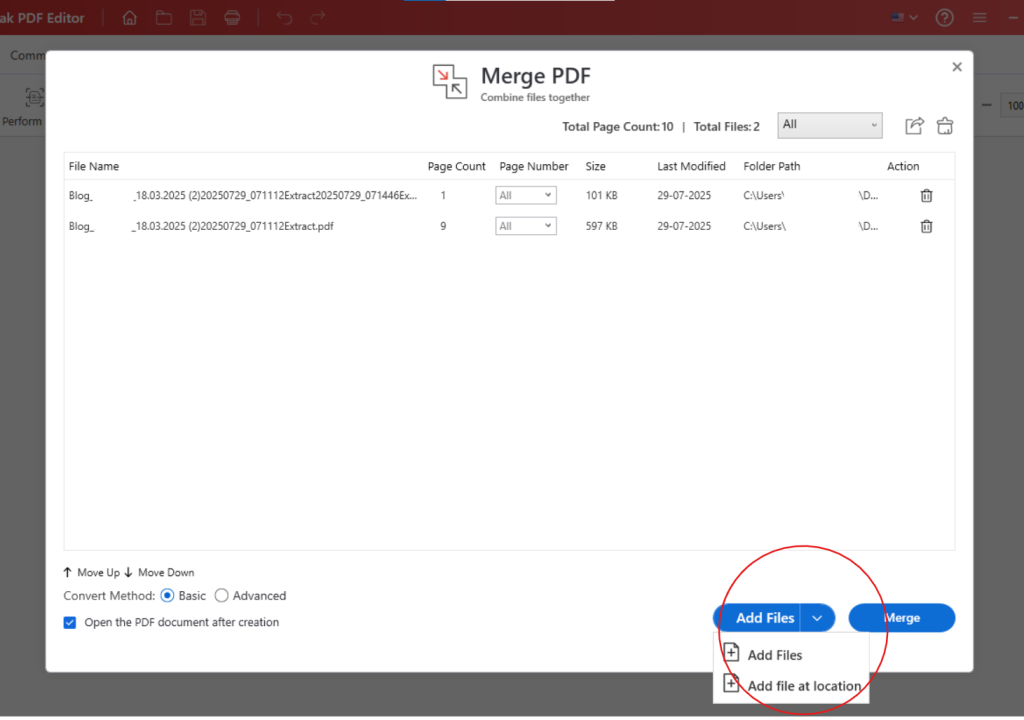
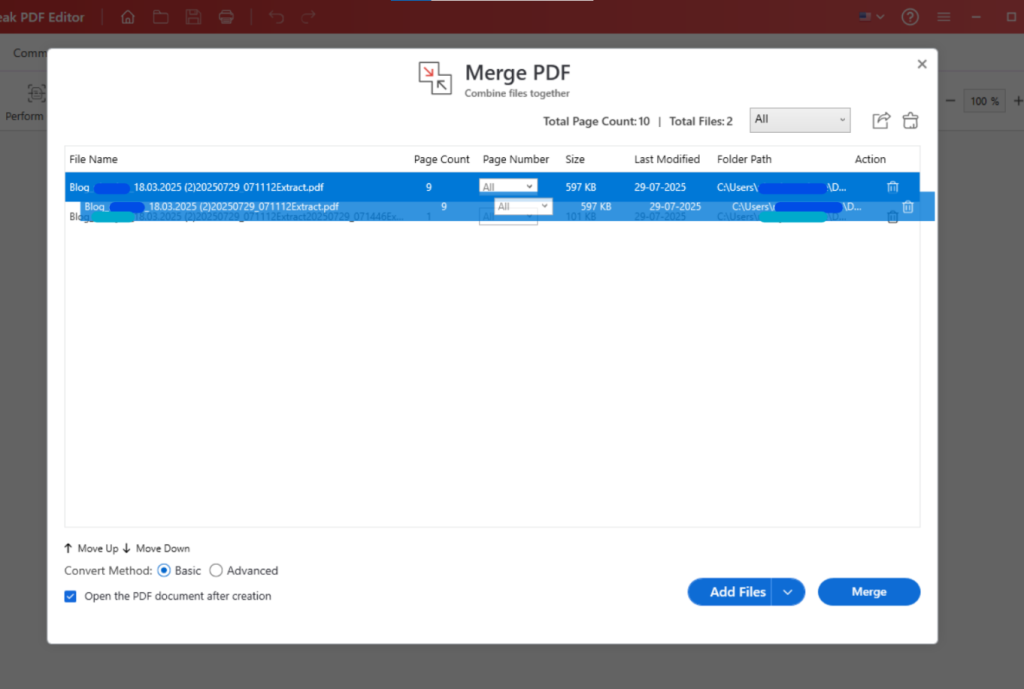
Once uploaded they are ready to merge; If the order is not as you want you can arrange them in your preferred order by dragging the files up or down.
Then hit “Merge” and choose where you want your new combined PDF file to be saved.
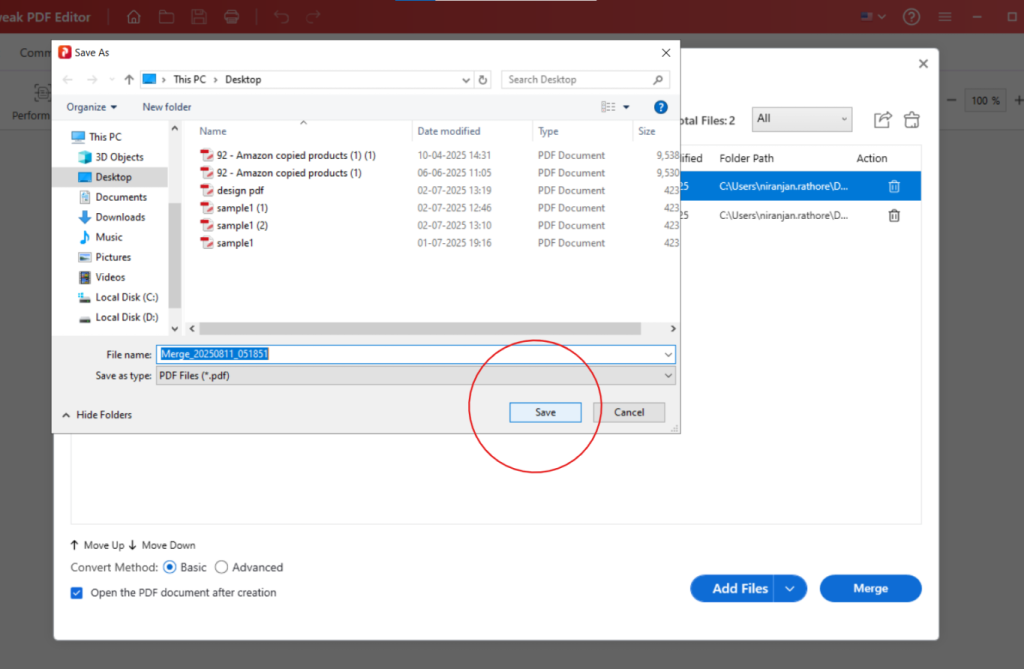
That’s it, it will automatically save where you wanted the merged file to save and will open in the application, so you can have a look!
How to Split PDF Pages
Launch Systweak PDF Editor.
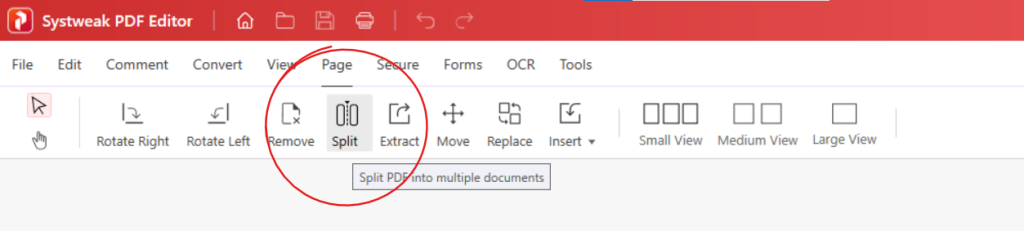
Open the ‘Page’ tab.
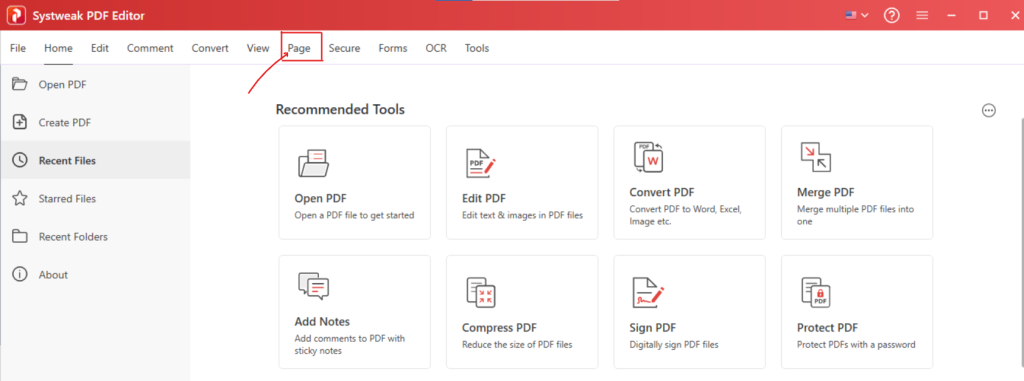
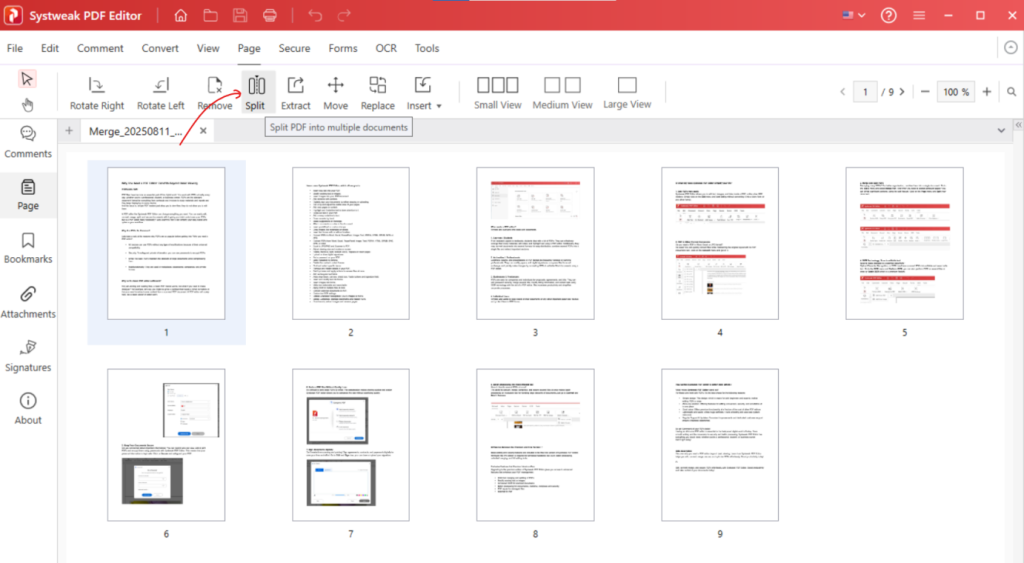
Click on ‘Split’ from the options in the page tab.
Select the PDF file you want to split.
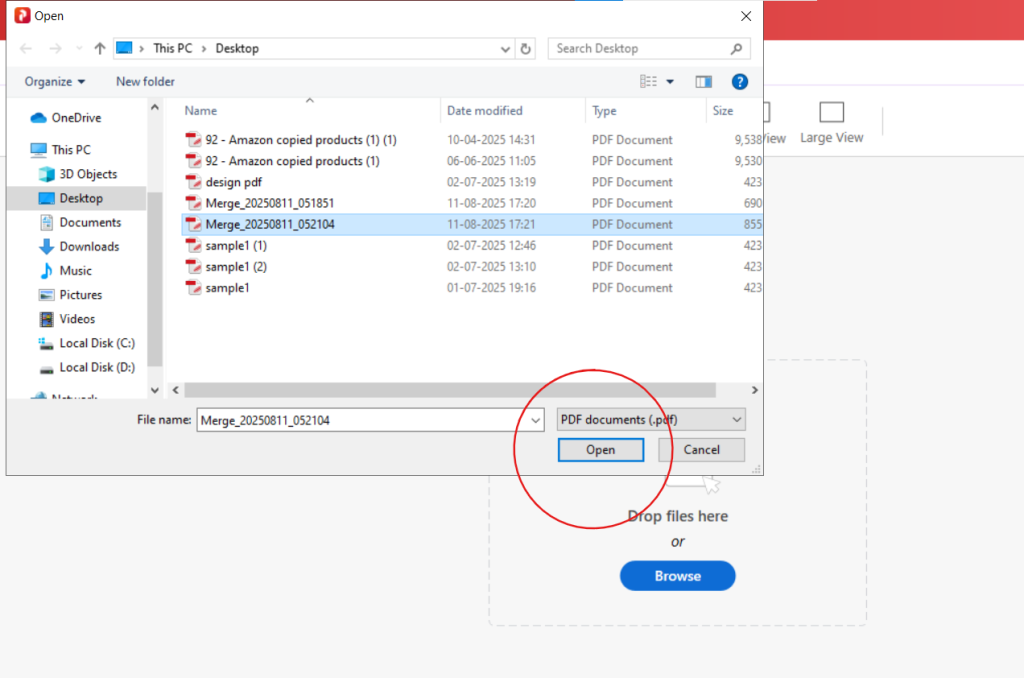
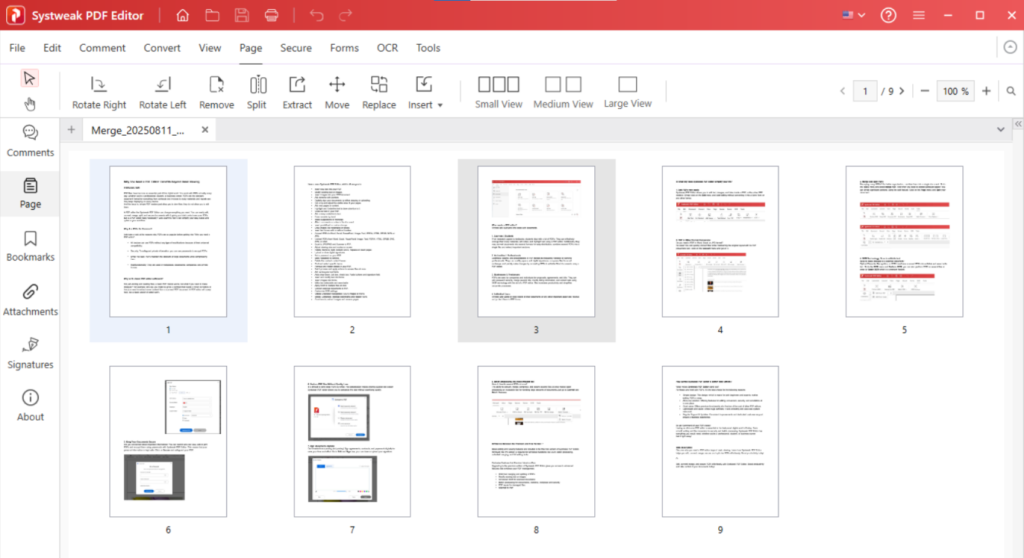
It will be uploaded.
Once uploaded, again click on “Split” to start your splitting process.
Now set your preferences to split the PDF as you want.
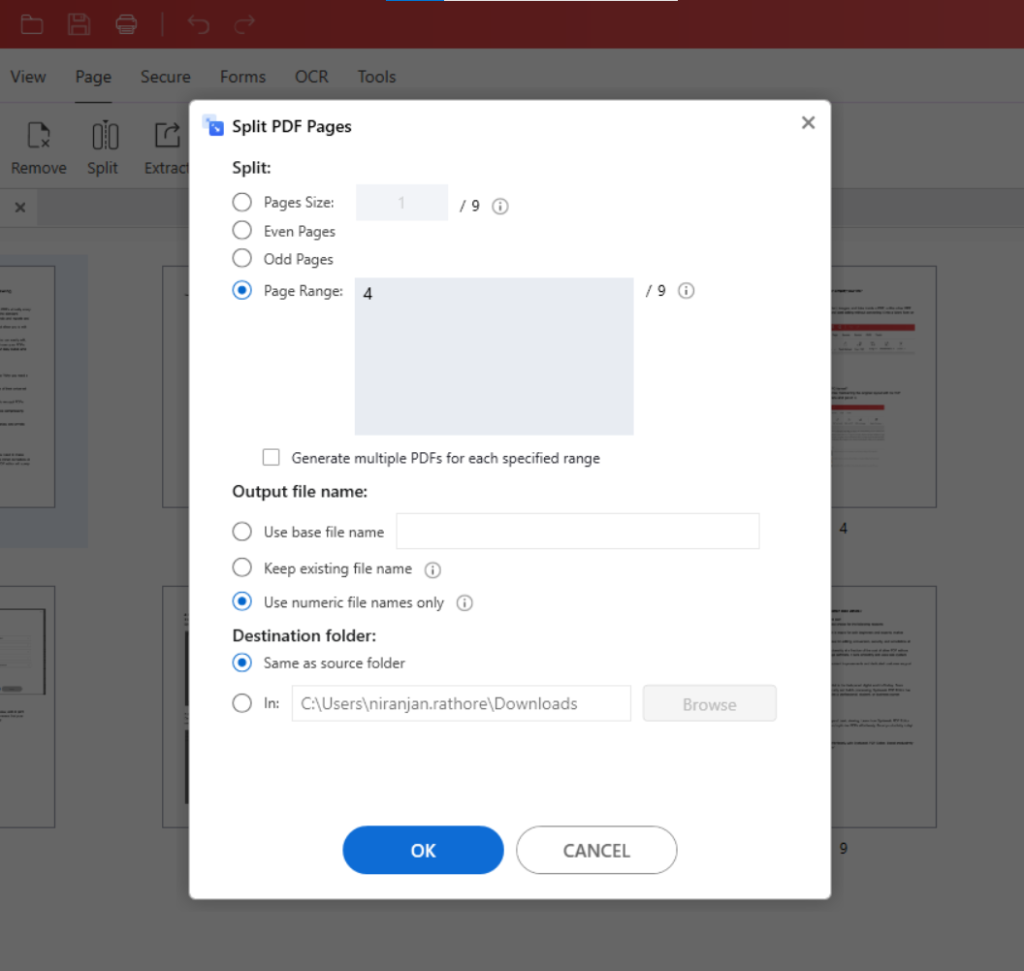
Choose whether to split by page size, by even or odd pages, or by page range.
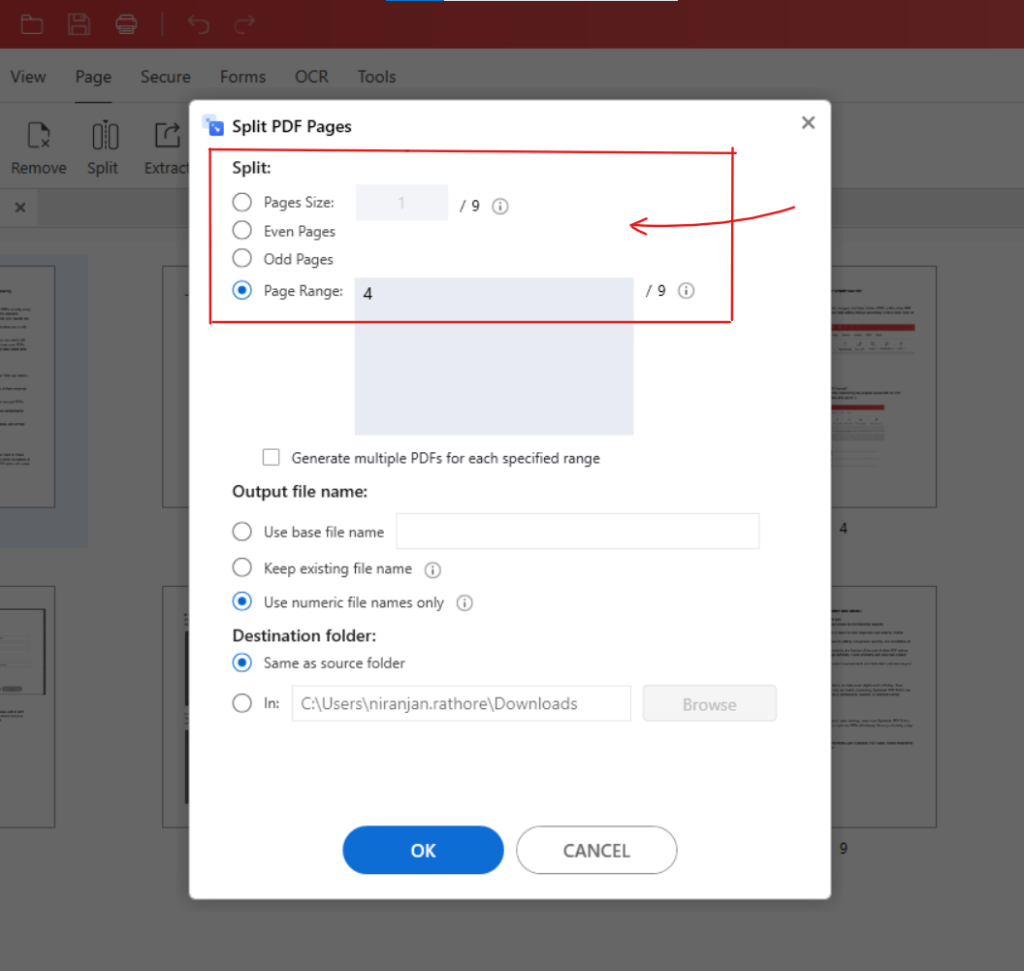
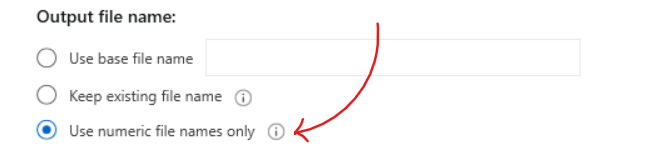
You can keep the output file name according to you. Use base file name,
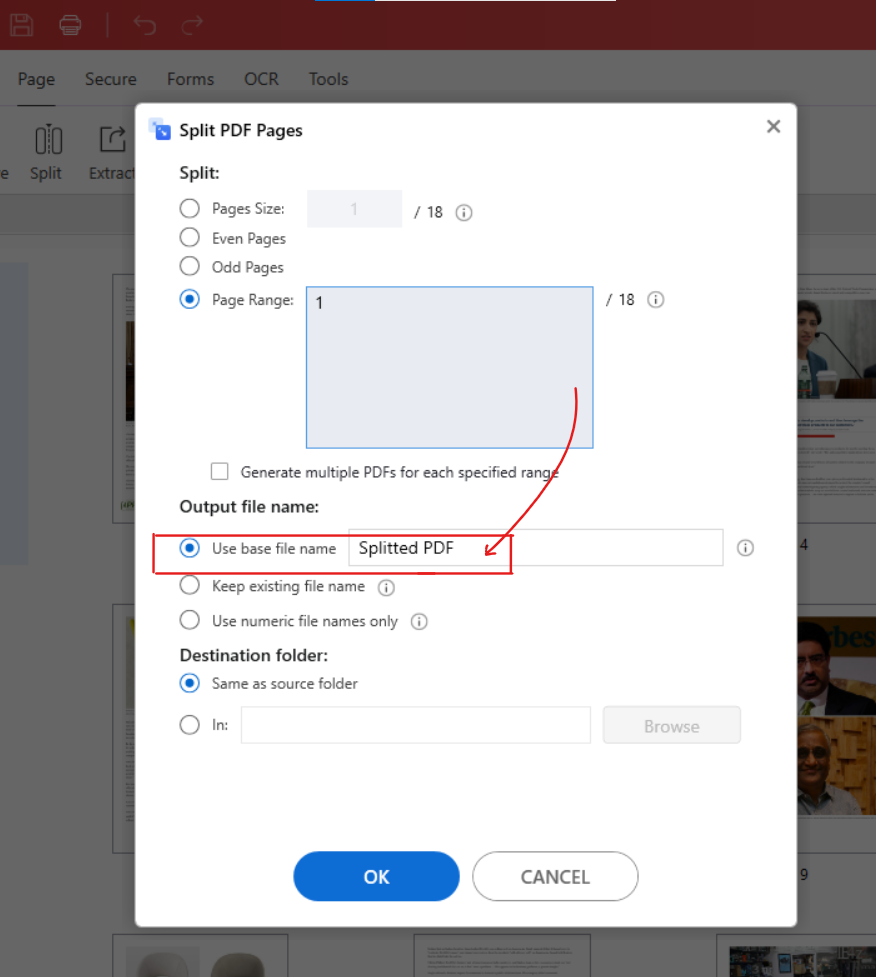
or keep existing file name,
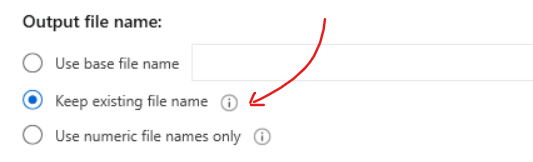
or use numeric file names only.
Then select wherever you like to save the smaller PDFs, same as source folder or select new folder.
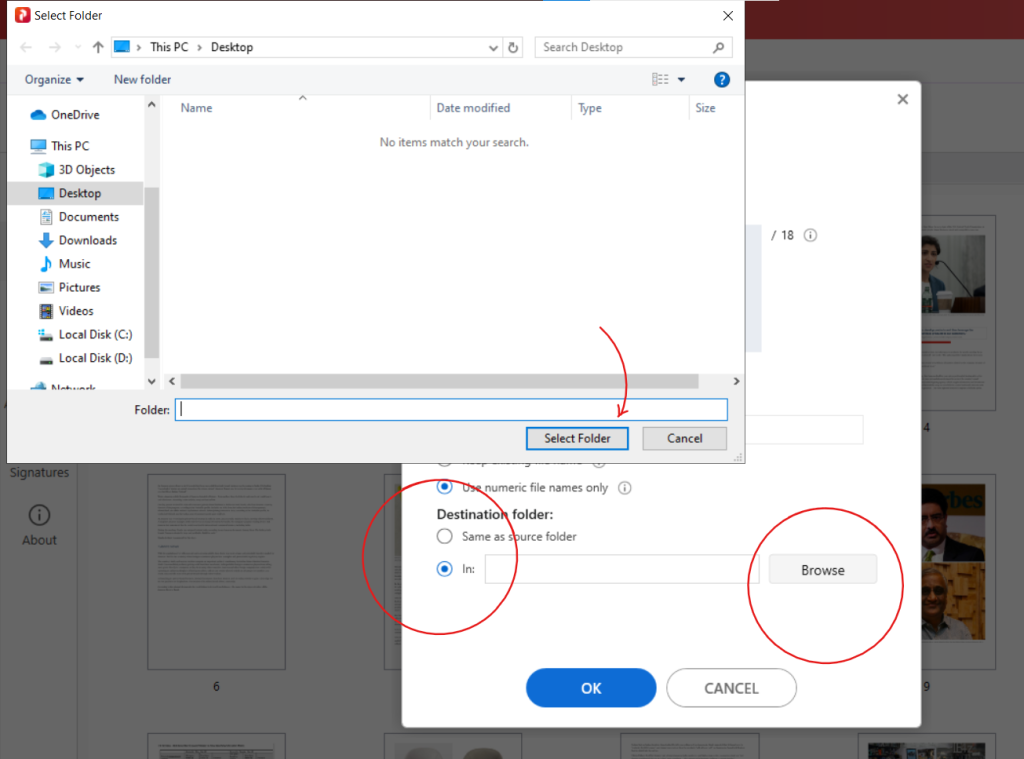
Now click “OK” and your big PDF file will be saved in neat and manageable form and two different PDFs.

How to Reorder Pages in a PDF
Open your PDF in Systweak PDF Editor.
Go to the ‘Page’ tab.
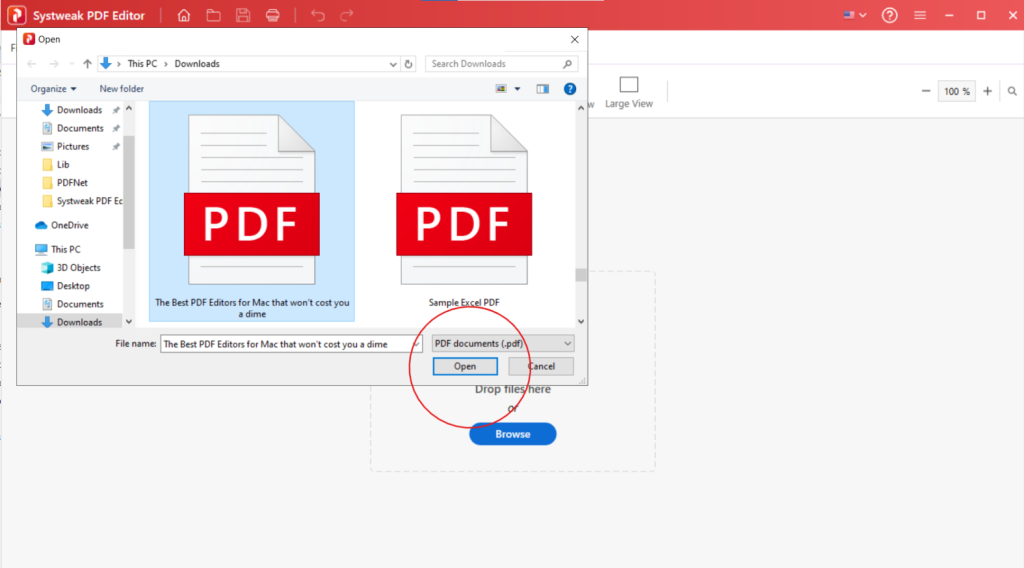
Click on Browse and add the PDF file in which you want to reorder pages.
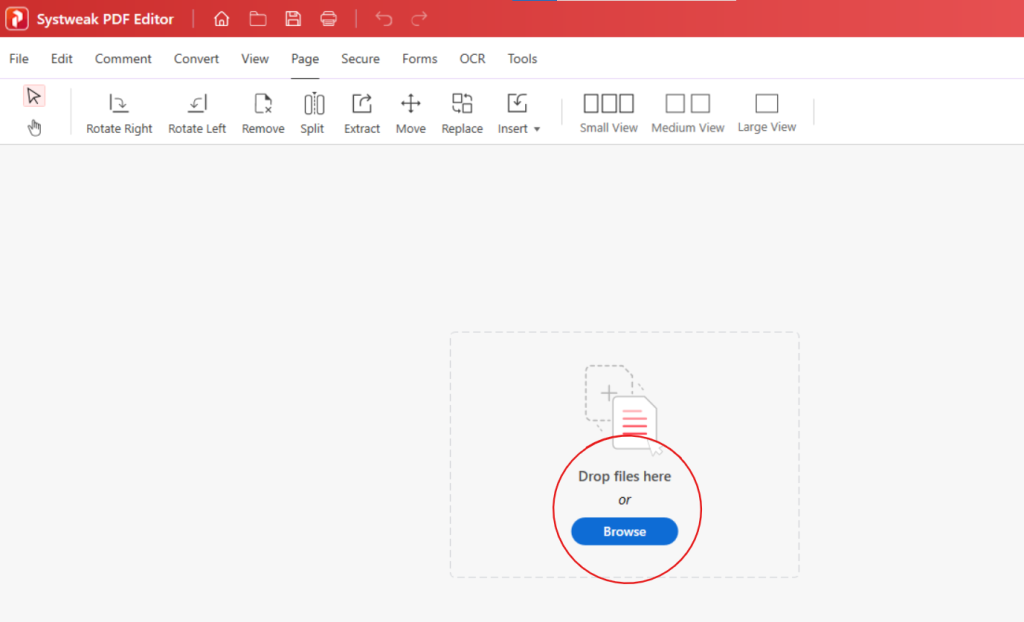
Add PDF file.
Once added, you’ll see thumbnails of all pages, just simply drag and drop pages to rearrange them as you want.
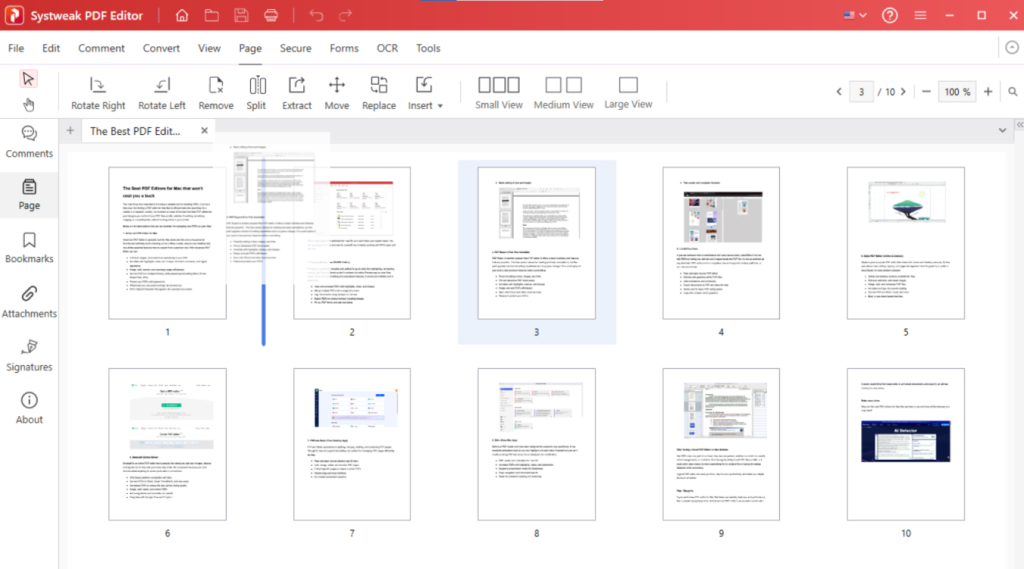
Or click on “Replace”, add your file and put “Page to replace” and “replacement page”.
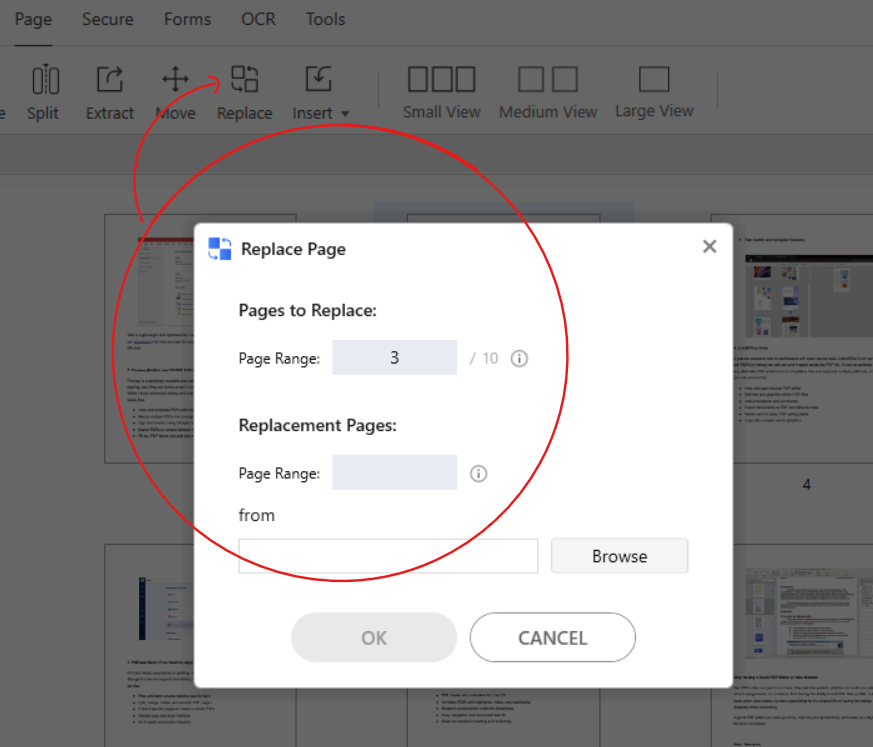
You can also remove, rotate, or extract pages from the Page tab.
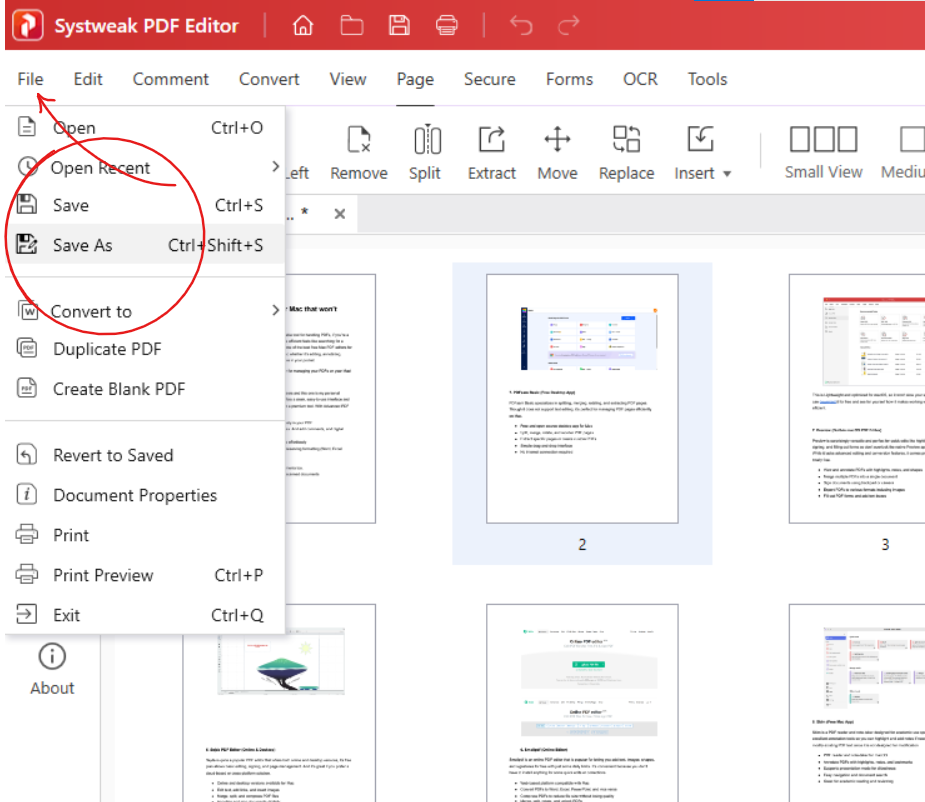
After organizing pages as you want, click on file and Save your PDF.
Why I Recommend Systweak PDF Editor
It’s an All-in-One Tool
You can merge, split, reorder, edit, annotate, convert PDFs, etc in one application, there’s no need for multiple apps.Easy to Use
Its interface is simple and user-friendly even beginners can navigate without any second thought.Reliable Formatting
It keeps your PDF layout the same as they were after merging or splitting, and your format remains intact.Lightweight & Fast
It can handle large files smoothly without slowing down your system.Affordable
It offers so many features without the hefty price tag.
Conclusion
Managing your PDF pages has never been easier. But with the Systweak PDF Editor it is quite simple. Whether you want to combine reports, split large files for convenience, or fix page orders, Systweak PDF Editor has got you covered, all in one simple, efficient app.