
I have always enjoyed the creative side of video editing.
Finding the right moment, creating a rhythm, choosing where a scene should cut, and turning raw footage into something people actually want to watch is what makes editing exciting.
But there is another side of editing that is not quite as enjoyable.
Going through hours of footage. Watching the same clip multiple times. Removing mistakes. Cutting out pauses. Finding the best takes. Creating the first version of a timeline before the real creative work can even begin.
That part can take up a huge amount of time.
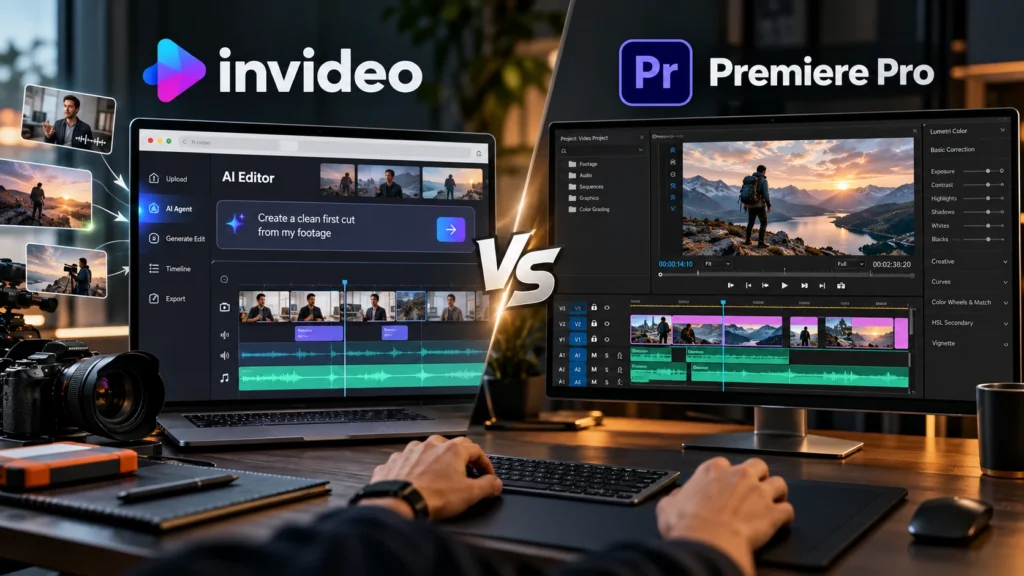
So when I tried invideo editor alongside Premiere Pro, I wanted to find out whether AI could actually make the editing process easier or whether traditional editing workflows were still the better option.
What I found was quite interesting.
It was not about replacing the editor. It was about changing where the editor spends their time.
Why I Wanted to Try Invideo Editor
Professional editing software has become incredibly advanced.
Tools like Premiere Pro give editors a huge amount of control over their projects. You can manually build timelines, adjust every cut, refine audio, colour grade footage, and create highly polished videos.
But even with all those tools, there is still a lot of repetitive work involved.
Before you even start making creative decisions, you often need to prepare the footage.
That means:
- Sorting through recordings
- Comparing different takes
- Removing unwanted sections
- Finding usable clips
- Building an initial timeline
This is where invideo editor takes a different approach.
The idea behind it is that editing has two parts.
The first is the craft. This is the storytelling, judgement, pacing, and creative decisions that make a video feel right.
The second is the execution. This is the repetitive work that takes time but does not always require creative input.
Invideo Editor focuses on helping with that execution side by bringing AI editing agents into a professional editing timeline.
My First Experience With Invideo Editor
One of the biggest differences I noticed was the way I started a project.
With a traditional editing workflow, I would normally import footage and begin reviewing everything manually.
With invideo editor, the process felt more like working with an assistant editor.
The platform runs in the browser, so you can sign up and start editing without needing a traditional desktop setup.
You upload your footage, create an AI editing agent, and explain what you want it to help with.
Instead of manually performing every first step, you give the direction and then review the result.
That change in approach was probably the biggest thing I noticed.
I was spending less time preparing footage and more time thinking about the final video.
The Biggest Workflow Change Was Creating a First Cut
The feature that stood out most to me was agentic assembly.
For anyone unfamiliar with the term, a base cut is the first complete version of a timeline created from usable footage.
It is not the finished video.
It is the foundation you continue editing from.
The purpose is to remove repeated takes, mistakes, pauses, and filler so you can move into the creative editing stage faster.
The workflow is simple:
You upload your footage.
You can add a script or transcript if you have one.
Then you describe the type of first cut you want.
The AI agent reviews the footage, selects usable moments, removes repetition, and places the selected audio and video directly onto the timeline.
For projects with lots of raw footage, this can remove one of the most time-consuming parts of editing.
Where Invideo Editor Felt Different From Premiere Pro
Using both tools made me realise they approach editing from different perspectives.
Premiere Pro is built around giving editors complete manual control.
That is incredibly valuable when you want to fine-tune every part of a project.
You decide every cut.
You adjust every transition.
You shape every detail.
Invideo Editor feels different because it allows you to delegate some of the repetitive tasks while still keeping control of the project.
The AI agent does not take away the timeline.
Instead, it gives you a starting point that you can review, change, and refine.
For me, that was the biggest difference.
The question was no longer:
“How quickly can I manually complete every editing step?”
It became:
“What parts of the workflow can I hand over so I can focus on the creative decisions?”
It is Not Just About Cutting Clips
Another thing I found interesting was that invideo editor is designed to support more than just creating a first timeline.
The platform can help with different parts of the editing process, including finding moments in footage, restructuring sequences, improving pacing, creating different versions, and helping with visual and audio finishing.
This could be useful for creators who are constantly making different types of content.
For example:
A YouTube creator might need long-form videos, short clips, and highlights from the same recording.
A podcast editor might need multiple versions from one conversation.
A marketing team might need different edits for different platforms.
Instead of rebuilding everything from scratch each time, having an AI-assisted workflow can make those versions easier to create.
Who Would Benefit From Invideo Editor?
I think invideo editor makes the most sense for people who regularly work with raw footage and want to spend less time on repetitive editing tasks.
This includes:
- YouTube creators working through long recordings
- Editors creating interviews, podcasts, documentaries, or commercial content
- Teams that need to review and update projects together
- Creators who want a professional workflow without handling every operational step manually
It is especially useful when you have a lot of footage but still want the final creative decisions to remain yours.
How to Start Using Invideo Editor
Getting started is straightforward.
- Go to invideo.io and select Timeline Editor below the prompt box.
- Create a blank timeline.
- Upload or drag your footage into Media.
- Create an AI agent and describe how you want the footage assembled.
For the best results, start with messy footage.
Multiple takes, false starts, and repeated lines give the AI agent more opportunities to remove unnecessary work.
Clean single-take footage will not show the workflow difference as clearly.
My Final Thoughts
After trying invideo editor alongside Premiere Pro, the biggest change was not the editing tools themselves.
It was the workflow.
Traditional editing software has spent years helping editors complete individual tasks faster.
Invideo Editor introduces a different idea: allowing editors to hand over some of the repetitive execution while keeping the creative control.
The storytelling decisions are still yours.
The final vision is still yours.
But the hours spent preparing footage can become much lighter.
For creators and editors working with large amounts of content, that could make a noticeable difference.
Instead of spending so much time getting ready to edit, you can spend more time actually improving the story.