
We have all been there. You delete a folder, a USB drive suddenly shows up as “RAW,” or a crash wipes out the project you spent weeks on. The first reaction is panic. The second is a frantic search for data recovery software that does not cost a fortune.
The good news is that you do not always need to pay up. Plenty of free data recovery software can help you to recover lost data in Windows, bringing back deleted documents, photos, videos and more, as long as you act quickly and do not overwrite the lost data. In this guide, we look at five of the best options, explain who each one suits, and compare them side by side.
A Quick Word Before You Start
When a file is deleted, it usually is not erased right away. The system simply marks that space as available. Every minute you keep using the drive, you risk writing new data over it. So before you try anything:
- Stop using the affected drive immediately.
- Never install recovery software onto the drive you are recovering from.
- Save recovered files to a different drive.
With that out of the way, here is how we chose the tools on this list.
1. Stellar Data Recovery
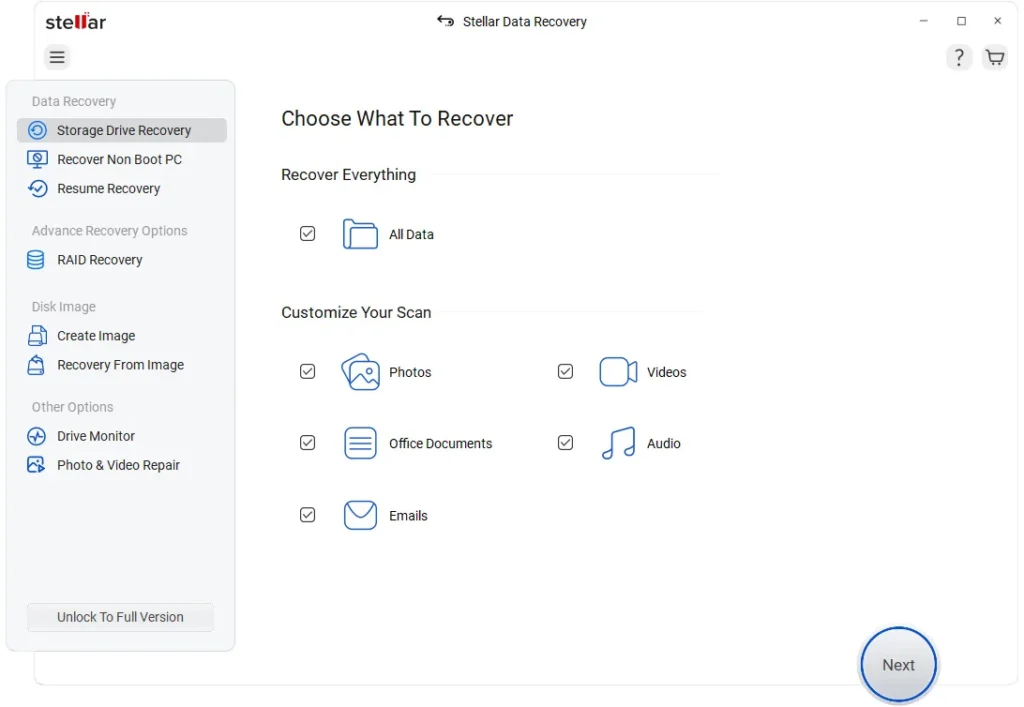
If you want a polished, beginner-friendly tool, Stellar Data Recovery is a strong place to start. Stellar has been in the recovery business for years, and its interface shows it. You pick the file types you want, choose a location, and hit scan. There is not much of a learning curve.
The data recovery software lets you to recover 1 GB, which is plenty for a handful of documents or a folder of photos. It handles internal drives, external hard disks, USB sticks and memory cards, and it supports a wide range of file formats. A preview feature lets you check a file before restoring it, which saves a lot of guesswork.
Our take: If you want one safe starting point, this would be it. The guided flow makes it hard to pick the wrong setting in a stressful moment. Just check that the free 1 GB limit covers what you need before you scan a whole drive.
Pros:
- Very easy to use, with a clear step-by-step flow
- Supports photos, videos, documents, emails and more
- Preview files before recovery
- Works on Windows and Mac
Cons:
- Free version caps how much you can recover
- Deep scans on large drives can take a while
2. Recuva
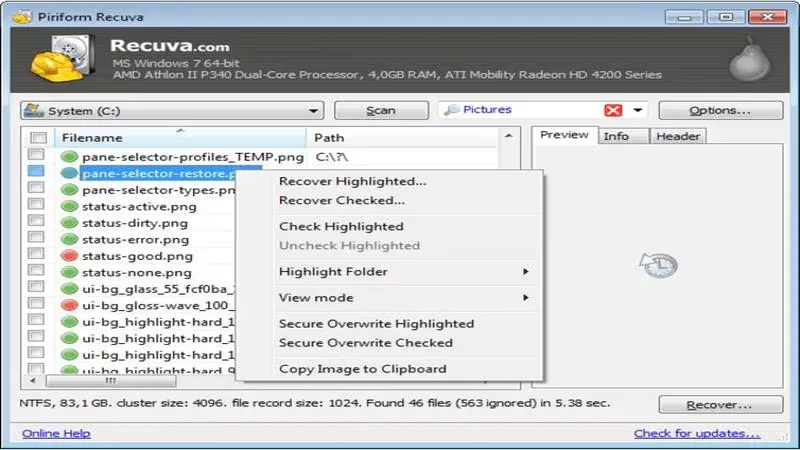
Recuva has been around for a long time and remains a favourite for quick, simple recoveries on Windows, making it an easy way to recover lost data in Windows after an accidental deletion. It is lightweight, and the built-in wizard walks you through the process even if you have never touched a recovery tool.
Its “Deep Scan” mode digs further when the standard scan comes up empty, and the colour-coded results (green, orange, red) give you a rough idea of how likely each file is to be recovered intact. The free version has no hard recovery cap, which is a big plus. The catch is that development has been slow in recent years, so it can struggle with newer file systems and heavily damaged drives.
Our take: Try this first for fresh deletions on Windows, since it costs nothing and takes minutes. If most results come back red, move on rather than running scan after scan on the same drive.
Pros:
- Genuinely free for personal use, with no recovery limit
- Small and fast to install
- Helpful wizard for first-timers
Cons:
- Windows only
- Less effective on formatted or corrupted drives
- Interface feels dated
- No free support for free version
- No free software update
3. PhotoRec
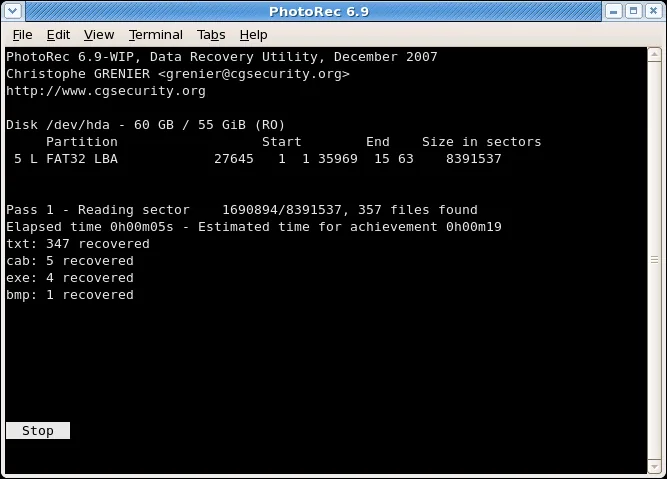
PhotoRec is the tool people turn to when the friendly options fail. It is open source, completely free, and works on Windows, macOS and Linux. Instead of relying on the file system, it reads the raw data and looks for known file signatures, which is why it can recover files from drives that are formatted or badly damaged.
The trade-off is usability. PhotoRec runs in a text-based interface, and it does not preserve original file names or folder structures. You may end up with thousands of files with generic names to sort through. Its companion, TestDisk, is excellent for repairing lost partitions and fixing boot problems.
Our take: This is the one we would keep on a USB stick in the toolbox. It is not pretty, but when friendlier tools come up empty, it is often the one that still finds something. Set aside time to sort the files afterwards.
Pros:
- 100% free and open source, with no limits
- Cross-platform
- Recovers data from formatted and damaged media
Cons:
- Command-line style interface can be intimidating
- Recovered files lose their original names and folders
4. MiniTool Power Data Recovery
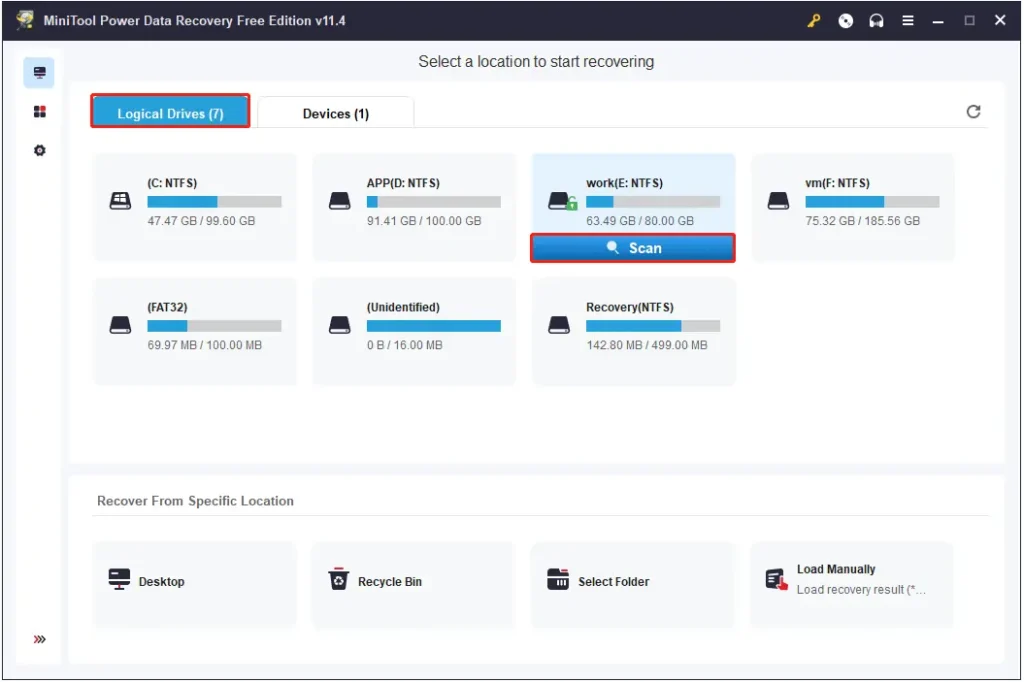
MiniTool Power Data Recovery strikes a nice balance between power and ease of use. The interface is tidy, with separate modules for recovering from a specific location, a whole disk, the Recycle Bin or the desktop. It can also help with lost partitions and damaged drives.
The free version allows you to recover a limited amount of data (typically around 1 GB), so it works best for targeted recoveries rather than restoring an entire drive. If you need more, you will have to upgrade, but for a few important files it does the job nicely.
Our take: A sensible middle ground if you want more control than Recuva without touching the command line. Spend the free limit on the files that matter most rather than on a whole drive of photos.
Pros:
- Clean interface with several recovery modes
- Scans partitions, disks and removable media
- Preview support for common file types
Cons:
- Free recovery limit applies
- Advanced features are locked behind a paid license
- Doesn’t show preview of files in free version
- Available for Windows only
5. Windows File Recovery
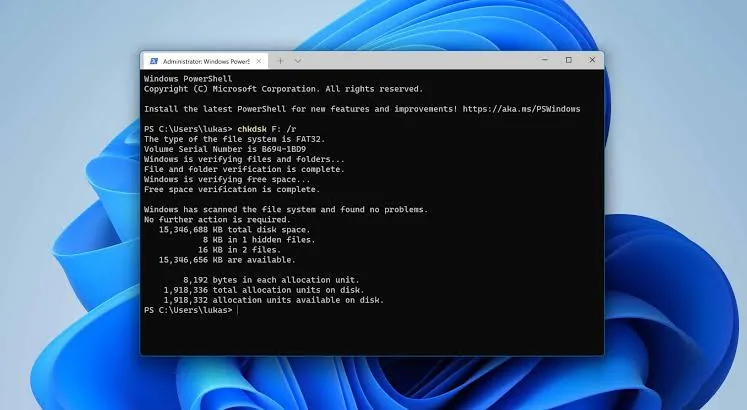
Microsoft offers its own free utility, Windows File Recovery, available from the Microsoft Store. It runs from the command line, so it is not the most welcoming tool, but it is official, free, and has no recovery cap.
It supports different modes depending on your file system and how the files were lost, so it takes a little reading to pick the right one. It works on recent versions of Windows 10 and Windows 11.
Our take: Worth a go if you are comfortable in Windows Terminal and would rather stay with a Microsoft tool. Read Microsoft’s guide for the right mode before typing anything, since the wrong switch wastes time.
Pros:
- Free
- No recovery size limit
- Handles NTFS, FAT, exFAT and ReFS
Cons:
- Command-line only
- Windows 10/11 only
- Needs some patience to learn the commands
Data Recovery Software Comparison Table
Here is how the five tools compare on the points readers ask about most.
| Software Name | Platform | Free Recovery Limit | Ease of Use | Preview Files | File Name / Structure Retention | Best For |
|---|---|---|---|---|---|---|
| Stellar Data Recovery | Windows & Mac | 1GB | Very easy | Yes | Keeps original names and folder structure | Comprehensive home & office recovery, RAW photos/videos |
| Recuva | Windows | No limit | Easy | Yes | Keeps original names and paths where possible | Quick and simple deleted file recovery on Windows |
| PhotoRec + TestDisk | Windows, Mac, Linux | No limit | Difficult | No | PhotoRec does not retain original names/folders | Deep signature carving (PhotoRec) and partition repair (TestDisk) |
| MiniTool Power Data Recovery | Windows only | Limited to 1 GB | Easy | Yes | Keeps original names and folder structure | Partition recovery and lost file recovery up to 1GB free |
| Windows File Recovery | Windows 10/11 | No limit | Difficult | No | Keeps original names (depending on scan mode and filesystem) | Official Microsoft tool for NTFS/FAT/exFAT deleted files |
Free limits and features change from time to time, so check each vendor’s website before downloading.
Which One Should You Pick?
There is no single winner for every situation, but this is how we would match each tool to a reader:
- New to this? Start with Stellar Data Recovery for the smoothest experience.
- Just deleted something on Windows? Try Recuva first. It is a fast, free way to recover lost data in Windows.
- Drive formatted or partition lost? PhotoRec and TestDisk are your best bet.
- Comfortable with the command line? Windows File Recovery is a solid, official choice.
Final Thoughts
Losing files is stressful, but it is rarely the end of the road. The right free data recovery software can often get your files back without costing a thing. For ease of use, Stellar Data Recovery is our top pick, while Recuva, PhotoRec, MiniTool and Windows File Recovery give you solid alternatives depending on your setup and comfort level.
Act fast, avoid writing new data to the affected drive, and then use one of the tools above to recover lost data in Windows. Once you have your files back, set up a proper backup so you never have to go through this again.