
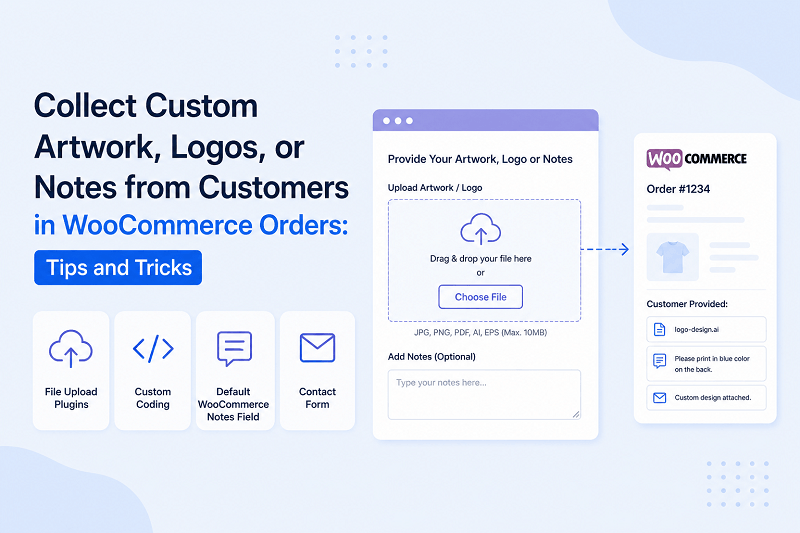
If your store sells anything that requires a customer to provide something before you can fulfill the order, a logo for embroidery, a photo for a custom portrait, a design file for print work, specific text for engraving, or even just detailed instructions about how they want something done, you already know how messy the default WooCommerce order flow is for this.
The standard setup gives customers an order notes field and that is essentially it. What arrives in your inbox after a custom order is placed is often a bare order confirmation with no attached files, followed by an email from the customer trying to figure out how to send you what you need, followed by you trying to match that email to the right order, and the whole thing becoming an administrative back and forth that delays production and frustrates both sides.
This blog post covers the realistic solutions available for collecting files, artwork, logos, and notes as part of the WooCommerce order process itself so that by the time an order lands in your management area everything you need to fulfill it is already there.
Understanding What You Actually Need to Collect
Before looking at solutions it is worth being specific about what type of information you are trying to collect because different requirements call for different approaches.
File uploads are needed when customers need to provide a design file, a logo, a photograph, a document, or any other asset that cannot be typed into a text field. This requires a proper file upload mechanism that handles the file transfer, stores it securely, and makes it accessible from the order.
Custom notes or instructions are needed when the customer needs to communicate preferences, specifications, or requirements that inform how the product is made but do not involve a file. Text is sufficient here and the requirement is having an appropriately placed and clearly labeled input field.
A combination of both is needed for most custom product businesses where a customer might provide both a design file and written instructions about how it should be applied.
The solution you choose should match what you are actually collecting rather than defaulting to the most complex option when a simpler one would do.
Solution 1: The Default WooCommerce Order Notes Field
The most basic option available without installing anything is the Order Notes field that WooCommerce includes on the checkout page by default. Customers can type instructions, preferences, or any text-based information into this field and it appears in the order details in your admin panel.
This works adequately for straightforward text-based requirements where the customer is providing written instructions that do not need a file alongside them. A customer ordering custom engraving who needs to specify the text to be engraved, a buyer of a made-to-measure item who needs to provide their measurements, or someone ordering a custom cake who wants to specify a message are all scenarios where the order notes field handles the requirement without any additional setup.
Where it falls short:
- It does not support file uploads of any kind.
- The label “Order Notes” is generic and gives customers no guidance about what they are supposed to provide.
- It sits in a general position on the checkout page rather than being contextually tied to a specific product.
- It is a single field for the entire order which becomes ambiguous when multiple products with different requirements are in the cart simultaneously.
For stores where customers need to provide files rather than just text, or where the requirements are product-specific rather than order-wide, the order notes field alone is not sufficient.
Solution 2: Customizing the Order Notes Field Label
A small improvement over the default that costs nothing and requires minimal technical knowledge is changing the label and placeholder text on the order notes field to give customers clearer guidance about what they should provide.
This can be done with a short snippet added to the theme’s functions.php file or a site-specific plugin:
php
add_filter( 'woocommerce_checkout_fields', 'customize_order_notes_label' );
function customize_order_notes_label( $fields ) {
    $fields['order']['order_comments']['label'] = 'Custom Instructions';
    $fields['order']['order_comments']['placeholder'] = 'Please provide any specific instructions, text for engraving, measurements, or other details needed for your custom order.';
    return $fields;
}
This does not add any new functionality but it meaningfully improves how customers understand what they should be providing which reduces the number of orders that arrive with no information because the customer did not realize the field was relevant to them.
It is still text-only and still order-wide rather than product-specific but as a zero-cost improvement to an existing feature it is worth implementing regardless of what other solution you add.
Solution 3: Adding a File Upload Field via Code
For stores with developer resources and straightforward single-file upload requirements, a custom file upload field can be added to the WooCommerce product page through PHP without a dedicated plugin.
The general approach involves:
Adding the upload field to the product page:
php
add_action( 'woocommerce_before_add_to_cart_button', 'add_custom_file_upload_field' );
function add_custom_file_upload_field() {
    echo '<div class="custom-file-upload">
        <label for="custom_file">Upload Your Design File</label>
        <input type="file" id="custom_file" name="custom_file" accept=".jpg,.png,.pdf,.ai,.svg">
    </div>';
}
Handling the file on add to cart:
The file needs to be processed when the product is added to the cart using woocommerce_add_to_cart_validation, stored temporarily, and then attached to the order when it is placed using woocommerce_checkout_create_order_line_item.
Making the file accessible from the order:
The uploaded file path needs to be saved as order meta so it is accessible from the order management area in the WooCommerce admin.
What this approach handles well:
It covers the basic single-file upload on a single product page without adding a plugin dependency. For developers maintaining the codebase it is transparent and straightforward to understand.
Where it becomes problematic:
What we observed with code-based file upload implementations is that the core upload functionality is only the beginning. File type validation, file size limits, secure storage that prevents direct public URL access to uploaded files, handling uploads on multiple pages like cart and checkout, allowing customers to preview and replace their upload before completing the order, and making files downloadable from the order admin page all require additional code that accumulates into a significant maintenance burden.
For anything beyond a single simple file upload on a single product type the code approach creates ongoing work that a dedicated plugin handles automatically.
Solution 4: Using Contact Form Plugins as a Workaround
Some store owners handle custom file collection through contact form plugins like Gravity Forms or WPForms by embedding a form on the product page or creating a dedicated submission page that customers visit after placing their order.
Gravity Forms in particular has capable file upload handling. It supports multiple file types, configurable size limits, and the ability to send uploaded files to a specified email address or store them in a defined location. WPForms has similar capabilities with a slightly more accessible interface for non-technical users.
Where this approach works:
For stores with low order volumes where the file submission is a separate step from the purchase and manually matching submissions to orders is manageable, form-based file collection is a workable if imperfect solution. It is also a reasonable option if the store is already using Gravity Forms or WPForms for other purposes and adding a file upload field is a low-effort extension of existing infrastructure.
Where it falls short:
The fundamental problem with form-based file collection is that it is disconnected from the WooCommerce order. Files arrive in a form submission inbox or email, orders arrive in the WooCommerce order management area, and someone has to manually match them and track which orders have received their files and which have not.
At low order volumes this is manageable with a spreadsheet and some discipline. At higher volumes it becomes a genuine operational problem that creates delays, missed files, and the kind of order management chaos that is hard to recover from once it builds up.
Solution 5: Google Drive or Dropbox Shared Links in Order Notes
A workaround that some store owners use is asking customers to upload their files to a personal Google Drive or Dropbox folder and paste the shared link into the order notes field at checkout. The instructions for doing this can be added to the product description or a dedicated page linked from the checkout.
This technically works and costs nothing but what we noticed with stores using this approach is that it creates significant customer experience friction. Many customers are not comfortable navigating file sharing settings, do not have a Google or Dropbox account they want to use for this, or simply do not follow the instructions correctly and paste a non-shareable link that requires the store owner to follow up and ask for a corrected version.
It is a workaround rather than a solution and for most stores the operational overhead it creates is higher than the zero cost it appears to have.
Solution 6: Dedicated WooCommerce File Upload Plugins
This is where the most complete and practical solutions live and it is worth understanding what to look for in a dedicated file upload plugin before choosing one.
A properly built checkout files upload for WooCommerce plugin should:
- Place the upload button in a contextually appropriate position on the product page, cart page, or checkout page.
- Support multiple file types with configurable restrictions.
- Allow customers to preview and replace their uploaded files before placing the order.
- Store uploaded files securely and make them accessible from the order management area.
- Handle the connection between the uploaded file and the specific order automatically rather than requiring manual matching.
- Allow customers to upload or replace files after placing the order if they forgot to attach at the time.
- Support an admin review workflow where uploaded files can be approved or rejected with customer notification.
Options worth knowing about:
YITH WooCommerce Uploads handles single file uploads per order from the cart page or My Account page. It covers the basic use case with admin approval and rejection and automated email notifications on both outcomes. File type and size restrictions are available. It is a solid option for stores with straightforward single-file requirements.
WooCommerce Product Add-Ons by WooCommerce includes a file upload field type as one of its add-on options which works for stores already using the product add-ons plugin for other customization fields. It is not a dedicated file upload solution but handles basic upload requirements within the add-ons framework.
File Uploader by Extendons is the most complete dedicated upload file WooCommerce solution available and worth covering in more detail because it addresses the full file collection lifecycle rather than just the initial upload.
Half the Work with a File Uploader for WooCommerce
What distinguishes the Extendons file uploader from simpler alternatives is the combination of where files can be collected, how they are managed after collection, and the admin workflow around reviewing and approving what customers submit.
Where files can be collected:
The plugin uses a rule-based system where each rule defines where the upload button appears. Options include the product page, cart page, checkout page both after order notes and alongside cart items, the thank you page, and the customer’s account page. This matters because different customers reach the point of having their file ready at different stages of the process and a system that only collects files on the product page misses customers who did not have their file prepared at that point.
What customers can do with their uploads:
Customers can upload single or multiple files depending on the rule configuration, drag and drop files into the upload area rather than navigating through folder structures, preview what they have uploaded before completing the order, delete and replace files if they uploaded the wrong version, and attach written notes alongside each file upload. The note field can be made mandatory if the store needs customers to always provide written instructions alongside their files.
Post-order file management:
If a customer forgets to upload at checkout or needs to replace a file after receiving feedback, they can upload or update their files from the thank you page or their account page without contacting support. From the My Account area they can see all their uploaded files across all orders, check approval status, preview what they submitted, and add or replace files as needed.
Admin review workflow:
Every uploaded file is visible from the order details page in the WooCommerce admin. Files can be approved or rejected individually and rejections support a feedback note explaining what the customer needs to provide instead. Customers are automatically notified by email on both approval and rejection. Once a file is approved it is locked against further customer modification which prevents last-minute file swaps after production has begun.
File storage:
By default files are stored on the hosting server in a configurable custom folder path that keeps customer uploads organized separately from product images and other store files. Google Drive integration is available for stores where offloading files to external storage is preferable for disk management reasons.
Charging for file uploads:
The plugin supports a fee for file uploads either as a charge per individual file or as a flat fee applied once per order regardless of file count. Discounts can also be offered on the upload fee if the use case calls for it.
Which Solution is Right for Your Store?
The right choice depends on what you are actually collecting and at what volume.
If customers are only providing text-based instructions and no files, improving the order notes field label and placeholder covers the requirement at zero cost and minimal effort.
If you have developer resources and a simple single-product single-file requirement, a code-based solution keeps things lean without adding a plugin dependency, provided someone can maintain it over time.
If you are already using Gravity Forms or WPForms for other purposes and your order volume is low enough that manually matching form submissions to orders is manageable, the form plugin workaround is a reasonable stopgap.
If file collection is a central part of how the store operates and the admin workflow around reviewing, approving, and managing submitted files matters to how orders are fulfilled, a dedicated plugin that keeps everything within the WooCommerce order context is the approach that scales properly.
What we noticed consistently across stores that have implemented proper checkout files upload for WooCommerce is that the operational improvement is not just about having the file attached to the order. It is about eliminating the email back and forth, the manual file matching, the uncertainty about whether the right file has been received for each order, and the delays that come from finding out a file is wrong after production has already begun.
Getting the file collection system right from the beginning saves a disproportionate amount of operational time compared to the effort of setting it up properly.
Practical Tips Regardless of Which Approach You Choose
Whatever solution you implement, a few practices consistently improve the customer experience and reduce the number of incorrect or missing file submissions:
- Be specific about what you need on the product page itself. File format requirements, minimum resolution for print products, color mode requirements, and size specifications should be communicated clearly before the customer reaches the upload point rather than after they have already submitted something incorrect.
- Provide an example of an acceptable file where possible so customers can verify their file matches what is expected before uploading.
- Make the upload field label specific to what is being collected rather than using generic labels. “Upload Your Logo File” is more actionable than “Upload File” and “Enter Your Engraving Text” is clearer than “Add a Note”.
- Test the upload experience from the customer side using a fresh browser session before going live because what is obvious from the admin configuration side is often less clear to a first-time customer.
- Have a clear process for following up when an order arrives without an expected file rather than just waiting. A triggered email asking for the missing file sent automatically a set number of hours after the order is placed prevents orders from sitting idle while you wait for the customer to realize they forgot to attach something.
In Summary
Collecting custom artwork, logos, notes, and instructions as part of the WooCommerce order process is genuinely solvable without the order becoming a starting point for a separate communication thread. The right approach depends on the complexity of what is being collected and the volume of orders involved.
For text-only requirements, the built-in options with some label customization are often enough. For file uploads at any meaningful volume, a dedicated upload file WooCommerce solution that keeps files tied directly to the orders they belong to is what actually makes the custom order workflow manageable at scale.