
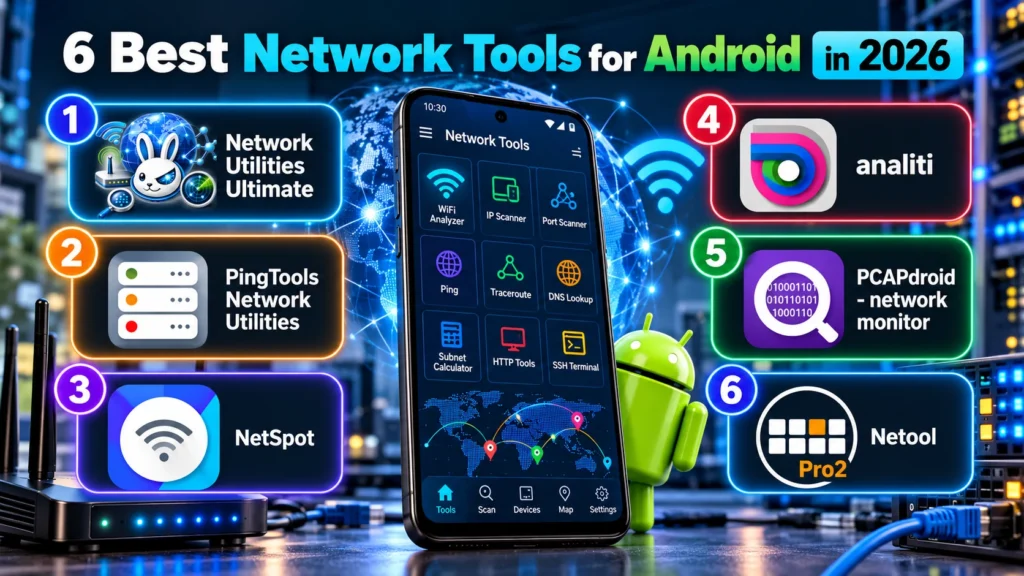
Android has become a legitimate field diagnostic platform, but choosing software remains difficult. The Play Store lists dozens of overlapping Android network tools with inconsistent descriptions, unclear permission demands, and feature sets that look similar until tested on a live network. For an IT professional troubleshooting a client site or a developer validating connectivity, that ambiguity costs time and creates risk.
Our top pick is Network Utilities Ultimate for IT professionals and network administrators who want a single Android app covering the full diagnostic toolkit, from WiFi analysis and IP and port scanning through ping, traceroute, DNS lookup, subnet calculation, HTTP tools, and SSH terminal without installing multiple separate apps. It offers a practical alternative to buying or managing several specialist tools, with breadth of coverage as its main advantage. For no-root traffic capture and connection inspection, PCAPdroid is the strongest alternative. For Wi-Fi heatmapping and dead-zone surveys, NetSpot is the strongest alternative.
This guide evaluates the best network tools for Android in 2026 based on feature breadth, use-case fit, root requirements, pricing clarity, and professional suitability. What follows is a ranked list of six distinct options, each selected for a specific job.
At a Glance Comparison
| App | Best For | Key Strength | Practical Consideration |
|---|---|---|---|
| Network Utilities Ultimate | All-in-One Network Diagnostics | WiFi analyzer plus IP scanner, port scanner, ping, DNS, traceroute, subnet calculator, HTTP tools, and SSH terminal in one install | Busier interface than a single-purpose app |
| PingTools Network Utilities | Ping, Traceroute, and Focused Diagnostics | Free and simple diagnostics with save and share for results | Narrower scope than an all-in-one toolkit |
| NetSpot | Wi-Fi Heatmapping and Dead-Zone Surveys | Survey Mode and Inspector Mode for structured site surveys | Location Services required |
| analiti | Per-Band RF and Wi-Fi Signal Metrics | Continuous WiFi scanning for real-time RF visibility | Location Services and permission required |
| PCAPdroid | No-Root Traffic Capture and Connection Inspection | Open-source capture with PCAP export, HTTP inspection, and TLS decryption | Packet analysis has a learning curve |
| Netool | Field Technicians Needing Passive VLAN and DHCP Detection | Hardware-assisted VLAN tag, DHCP, and discovery protocol detection | Netool hardware required |
What to Look For
Selecting a network diagnostic tool for Android requires more than counting features. The apps below belong to a broader class of network utility software, but mobile constraints involving permissions, background execution, and hardware access shape what each tool can do well. The criteria used here reflect professional field work rather than casual connectivity checks.
Feature Breadth and Workflow Coverage
The strongest tools cover a logical workflow from discovery through validation and remote remediation. Breadth matters because field work rarely involves a single test. An app that moves from WiFi signal assessment to IP discovery, port validation, DNS checks, and terminal access reduces context switching while helping avoid gaps in documentation.
Play Store Credibility and Maintenance
Install history, update cadence, and permission transparency help indicate whether an app is suitable for production use. Professional users should favor tools with clear changelogs and consistent maintenance over abandoned utilities, even when an older tool appears to list more features.
Use Case Specificity and Professional Fit
Generalist and specialist tools serve different needs. An all-in-one toolkit suits administrators who handle varied tickets, while a dedicated heatmapping or packet capture tool supports a narrower task in greater depth. This list assigns each app to the segment where its design provides the clearest advantage.
Root Access and Permission Requirements
Root access and permissions vary by tool and Android version. Location Services is required for the WiFi scanning functions described for NetSpot and analiti, while PCAPdroid explicitly supports no-root traffic capture. Before deployment, review each app’s current permission requests against your organization’s device policies.
Pricing Clarity and Team Suitability
Free, freemium, and paid tiers affect adoption for individuals and teams in different ways. When current pricing is unclear, users should check the latest listing rather than relying on older figures. Suitability for professional or casual use is assessed separately from cost.
The 6 Best Network Tools for Android
With those criteria in mind, here are the six apps that best serve distinct professional and technical needs in 2026. Each entry focuses on the job it does best, its practical limits, and the users most likely to benefit. The list starts with the app that covers the most ground in one install, making it our top recommendation for broad diagnostic work.
1. Network Utilities Ultimate – Best for All-in-One Network Diagnostics
The broadest single-install toolkit in this roundup, covering discovery, validation, calculation, and remote access without requiring several apps.
Network Utilities Ultimate consolidates a WiFi analyzer, IP scanner, port scanner, ping tool, DNS lookup, traceroute, subnet calculator, HTTP tools, and SSH terminal in one Android package. That combination addresses a common field workflow: starting with signal quality, moving to host discovery, validating services and paths, and then logging into infrastructure to remediate. For administrators and developers who carry Android as a secondary diagnostic device, the main benefit is workflow continuity rather than any single standout test.
In practice, the toolkit maps well to tier-one and tier-two troubleshooting. A technician can assess the wireless environment, scan the local subnet for expected and unexpected hosts, probe open ports, verify name resolution, trace path behavior, calculate subnet boundaries for documentation, check HTTP responses, and open an SSH session when credentials and policy permit. Few mobile utilities cover that full sequence, which is why this app takes the top position among the best network tools for Android for generalist professional use.
Breadth brings tradeoffs that buyers should consider. The interface necessarily exposes more sections and settings than a focused ping or scanner utility, so first-time users should expect a short learning curve. Mobile SSH also remains constrained by screen size and touch keyboards compared with laptop clients, even when the terminal implementation is sound. Those limits come with the all-in-one model and with using phones as diagnostic hosts.
Pros
- Widest functional range in this list, from WiFi analysis through SSH in one install
- Reduces the need to install, maintain, and switch between separate utilities
- Supports a professional sequence from survey and diagnosis to remote access
- Includes SSH terminal for field access to switches, servers, and lab devices
- Subnet calculator and HTTP tools add planning and application-layer checks rarely bundled together
Cons
- All-in-one layout feels busier than single-purpose ping or scanning tools
- Specialists who need only traffic capture or heatmapping may prefer a focused app
- Phone-based SSH has ergonomic limits for extended sessions compared with a laptop
- No confirmed open-source or guaranteed zero-cost tier, so budget-conscious teams should compare free alternatives
Who it’s best for: IT professionals, network administrators, developers, technicians, and advanced home users who want one network diagnostic tool for Android that handles the full troubleshooting workflow from an Android device.
2. PingTools Network Utilities – Best for Ping, Traceroute, and Focused Diagnostics
A focused and accessible diagnostic utility for core reachability and path testing, particularly useful for quick checks and documented handoffs.
PingTools Network Utilities centers on network checking functions with an emphasis on ping and traceroute-style diagnostics. The app is free and presents a simple, intuitive interface that lowers the barrier for junior technicians, help desk staff, and advanced home users. Results can be saved or shared, which helps when escalating a ticket, attaching evidence to a change record, or comparing before-and-after measurements during maintenance.
The design emphasizes restraint rather than broad coverage. While an all-in-one toolkit exposes many modules, this app keeps the workflow narrow and predictable. That focus makes it faster to run standard reachability tests, interpret loss and latency patterns, and export findings without navigating unrelated WiFi or scanning sections. For teams that standardize basic first-response steps, that simplicity has operational value.
Its strength is core network checking rather than a wide collection of advanced modules. The app does not position itself as a replacement for WiFi analysis, IP scanning, port scanning, or terminal access, so users who need those functions will require an additional tool.
Pros
- Free to use for core diagnostic functions, making it suitable for individuals and small teams
- Simple and intuitive interface that shortens onboarding for less experienced users
- Save and share functions support documentation and escalation workflows
- Focused scope avoids clutter for users who mainly need ping and traceroute checks
Cons
- Feature depth is limited, so buyers should not assume advanced modules beyond network checking
- Narrower scope than a full toolkit and not a substitute for WiFi surveys or port analysis
- No confirmed SSH terminal or subnet calculator for deeper remediation work
- Users needing throughput acceptance tests should select a tool designed for that purpose
Who it’s best for: Users who need a free ping tool for Android and traceroute checks with minimal friction and clear result sharing, rather than a broad professional suite.
3. NetSpot – Best for Wi-Fi Heatmapping and Dead-Zone Surveys
A purpose-built survey tool for mapping coverage and locating weak zones, rather than a general network scanner.
NetSpot approaches wireless work as a survey discipline. The product provides Survey Mode and Inspector Mode for WiFi analysis, supporting structured walkthroughs and closer inspection of observed networks. That approach suits access point placement, dead-zone identification, and post-deployment validation in offices, retail spaces, clinics, and multi-dwelling environments. Cross-platform availability across macOS and Android allows teams to correlate mobile walkthrough data with desktop-led analysis sessions.
On Android, deployment depends on system permissions. Location Services must be enabled for WiFi data access, which is standard for modern Android WiFi analyzer functions but should be communicated in advance to security-conscious clients. Field teams should also check Android-specific survey exports, map handling, reporting options, and current tier limits before choosing the app for a standardized workflow.
This is a specialist survey tool. The Android app does not claim ping, port scanning, traceroute, DNS lookup, or SSH functions. Buyers evaluating it as a general network scanning tool for Android will find the scope too narrow, while those looking to visualize coverage and prioritize remediation are more likely to value its focus.
Pros
- Dedicated Survey and Inspector Modes support methodical site surveys instead of basic spot checks
- Cross-platform presence helps teams compare mobile captures with desktop analysis
- Established position in the WiFi survey category with a professional workflow
- Effective for identifying dead zones and informing access point moves or additions
Cons
- Requires Location Services to be active, adding a permissions step for each survey
- Narrowly focused on WiFi surveying rather than full diagnostics or remediation
- No ping, port scan, traceroute, or SSH functions in the Android app
- Free and paid plans are available, but current pricing and plan limits should be checked before budgeting
Who it’s best for: Consultants, office managers, and field technicians who need repeatable WiFi heatmaps and dead-zone evidence rather than packet-level diagnostics.
4. analiti – Best for Per-Band RF and Wi-Fi Signal Metrics
A specialist signal monitor for continuous observation of the nearby wireless environment.
analiti continuously monitors the list of WiFi signals sensed by the device through its WiFi Scanning function. That live view helps distinguish neighboring networks, observe signal variation while moving through a space, and assess congestion in dense deployments with many access points. For users performing per-band RF checks, watching the environment update in real time is more useful than relying on a static snapshot.
The app requires Location Services to be active and Location permission to be granted for core scanning. That dependency is mandatory and reflects Android platform rules for WiFi data access. Evaluators should include permission enablement in setup time and make sure managed devices and work profiles permit the required access before scheduling survey work.
The app is best assessed as a WiFi signal specialist rather than a full IP scanner, port scanner, or terminal replacement. Users should check the current listing for pricing, reporting, and other secondary capabilities that may affect their workflow. Anyone who needs path testing or service validation will require a companion diagnostic tool.
Pros
- Continuous WiFi scanning provides a live view of the RF environment during walkthroughs
- Specialist focus suits per-band signal comparison in dense or multi-access-point spaces
- Lightweight concept that complements broader toolkits without duplicating them
- Useful for preliminary triage before committing to a full heatmap survey
Cons
- Core functionality depends on Location Services and Location permission being enabled
- Advanced reporting or planning functions should not be assumed
- Narrower scope than a full toolkit, without a scanning, DNS, traceroute, or SSH replacement role
- Pricing and tier details should be checked in the current Play Store listing
Who it’s best for: Advanced home users and technicians who want detailed WiFi signal metrics and continuous observation of nearby networks during troubleshooting.
5. PCAPdroid – Best for No-Root Traffic Capture and Connection Inspection
The clearest choice for seeing what an app is communicating, with traffic captured without root and exportable for desktop analysis.
PCAPdroid is a free and open-source no-root network monitor, firewall, and PCAP dumper for Android. PCAP, or packet capture, is a standard file format for storing intercepted traffic for later inspection in tools such as Wireshark. The app tracks, analyzes, and can block connections made by other apps on the device. It also exports PCAP traffic dumps, inspects HTTP traffic, decrypts TLS traffic under user control, and emphasizes privacy-friendly design. Open-source distribution under GNU GPL v3.0 allows security-conscious users and teams to audit its behavior rather than rely only on marketing claims.
The no-root design is central to its value. Many organizations prohibit rooting managed devices, and many individuals prefer not to modify their phones. PCAPdroid makes it practical to inspect Android network traffic during app development, malware triage, advertisement and tracker review, or connectivity debugging. Exported captures can move to a laptop for deeper protocol analysis, while on-device views support quick identification of unexpected endpoints or cleartext exchanges.
That capability comes with complexity. Interpreting captures, filters, HTTP sessions, and especially TLS decryption requires networking knowledge and careful handling of sensitive data. The interface prioritizes function over polish compared with commercial counterparts, while maintenance depends on community and maintainer resources rather than a commercial support agreement. It does not replace ping, traceroute, WiFi surveying, or SSH functions, so most professionals will pair it with a broader toolkit.
Pros
- No root required, making it suitable for managed devices and users who avoid system modification
- Open-source licensing supports auditability for privacy- and security-sensitive work
- PCAP export enables detailed desktop analysis in established protocol analyzers
- HTTP inspection and TLS decryption provide unusual depth for a no-root mobile tool
- Connection blocking adds lightweight firewall control beyond passive monitoring
Cons
- Specialist scope rather than a general diagnostic suite, with no ping, traceroute, or terminal functions
- Packet analysis concepts present a learning curve for less experienced users
- Community-driven maintenance does not carry the same assurances as a commercial SLA
- Functional interface prioritizes data density over guided workflows
Who it’s best for: Developers, security analysts, and privacy-focused users who need to inspect network traffic on Android, verify app behavior, and export captures for detailed review.
6. Netool – Best for Field Technicians Needing Passive VLAN and DHCP Detection
A hardware-plus-app system for on-site link validation, distinct from a standard software download.
Netool is a hardware-dependent solution. The Netool app works with physical Netool devices, including netool.io pro2 and netool.io lite, while netool.cloud is described as being in beta. Bluetooth and WiFi connection support are available. Specialist functions include discovery protocol support, DHCP detection, and tagged VLAN ID detection. This combination addresses the field technician’s need to plug into an unknown jack or segment and quickly determine VLAN assignment, DHCP responsiveness, and nearby infrastructure details without carrying a laptop.
For structured troubleshooting, the main value is rapid passive link intelligence. VLAN tag detection clarifies segmentation issues that software-only tools on WiFi cannot reliably reveal, while DHCP detection helps separate server-side failures from client misconfiguration. Discovery protocol data supports switch port identification and topology confirmation. Together, these checks reduce the time between arriving on-site and providing a defensible escalation to network engineering.
The hardware requirement determines both cost and logistics. Teams must purchase, charge, transport, and track the device, raising the barrier compared with software-only alternatives. The vendor has a small company footprint, and cloud components remain in beta, so buyers should check current product availability, pricing, support terms, and cloud readiness before standardizing. This is a professional field instrument rather than a casual download for general users.
Pros
- VLAN tag and DHCP detection provide link-layer insight rarely available in software-only apps
- Discovery protocol support aids switch and topology identification during site visits
- Hardware-plus-app design enables wired checks that phone radios alone cannot perform
- Focused professional positioning suits structured field workflows and documentation
Cons
- Specialist features require Netool hardware rather than only an app installation
- Higher cost and logistical overhead than free or low-cost software utilities
- Small vendor size raises reasonable questions about long-term support continuity
- Cloud functionality described as beta may not yet suit production dependence
Who it’s best for: Field technicians and contractors who need passive VLAN, DHCP, and discovery protocol detection at the jack and accept a hardware-plus-app model to obtain it.
Frequently Asked Questions
Should I Choose an All-in-One Diagnostic Tool for Android?
An all-in-one tool is worthwhile when you handle varied tickets and want to avoid switching between apps. A consolidated toolkit with WiFi analysis, IP and port scanning, ping, DNS lookup, traceroute, subnet calculation, HTTP checks, and terminal access covers most first-response and second-level tasks. Choose a specialist when your work is narrow and detailed, such as daily heatmaps or continuous packet review.
Should I Use a Dedicated Scanning Tool for IP and Port Discovery?
A dedicated network scanning tool for Android makes sense when host discovery and service validation dominate your work. Look for clear subnet targeting, responsive host lists, and port probing that distinguishes open, closed, and filtered states. Pair scanning with DNS and traceroute checks to separate naming, filtering, and routing causes before escalating.
Is Rooting Worth It or Should I Stay With No-Root Apps?
Staying no-root is the better decision for most users in 2026. PCAPdroid explicitly supports no-root capture, while the WiFi scanning functions described for NetSpot and analiti require Location Services. Check each app’s current requirements before deployment rather than assuming every tool handles access in the same way. Consider rooting only for niche low-level testing with explicit organizational approval.
Should I Replace Multiple Utilities With One Android App?
Consolidation helps when app sprawl slows response or complicates documentation. One well-organized toolkit reduces the number of installs to maintain, permissions to audit, and exports to standardize. Keep one or two specialists alongside it if you regularly perform heatmaps, packet analysis, or hardware-assisted field tests that benefit from a dedicated design.
Should I Pick a WiFi Analyzer or a Network Scanner for My Task?
Base the choice on the failure symptom. Use a WiFi analyzer when the issue involves signal strength, roaming, congestion, or dead zones. Choose a scanner with IP scanner and port scanner functions when hosts are missing, services are unreachable, or unknown devices appear. Many field cases need both in sequence, beginning with wireless conditions and then moving to host and service validation.
Should I Run Port Scans and Traceroutes Directly From My Phone?
Running these tests from a phone is useful for on-site triage and reproducing issues from the user’s perspective. Use traceroute to locate where latency or loss begins and port scans to determine whether a service is reachable from the mobile segment. Document the target, time, network type, and results for handoff. Avoid scanning networks without authorization, and check policy before testing client or third-party infrastructure.
Is Investing in a Professional Toolkit Worth It for IT Work?
A professional-grade setup is worthwhile when Android is part of your formal troubleshooting process. Prioritize workflow coverage, export quality, permission transparency, and maintenance over raw feature counts. For most IT, development, and technician roles, an all-in-one diagnostic app paired with a no-root capture tool and, where needed, a survey or hardware-assisted field tool provides depth without unnecessary overlap.
Final Recommendation and Outlook
The use-case matrix is straightforward. Broad troubleshooting favors consolidation, while specialist tasks call for dedicated heatmapping, signal measurement, traffic inspection, or wired field detection tools. Among the best network tools for Android, the all-in-one approach provides the most efficient starting point for professionals who need continuity from discovery through remediation. Review the top pick first, then add focused tools only where recurring tasks justify them.